How to Find Your Flight Confirmation Email
By TripNoted · Updated October 16, 2026
Can’t find your flight confirmation email? Start with the email address used to book. Search for the airline or booking site, then try itinerary, confirmation, or e-ticket. In Gmail, add in:anywhere to include Spam and Trash. If the message is still missing, your airline or travel seller can help you check the reservation and request another copy.

Search your inbox in a few useful steps
Start with the account that received the booking message. If another person made the reservation, the confirmation may be in their mailbox. Ask them to search or forward the message to you. Search the airline and the travel seller if you booked through a travel site; each can send a separate email.
- Search across the mailbox. Try broad terms such as
flight,itinerary,booking,reservation, ore-ticket. Add the airline, seller, route, or destination if the first search finds too much. - Check more than the inbox. Look in All Mail, archived mail, Spam or Junk, and Trash. A confirmation can be filed under a label or moved to a folder without appearing in your inbox.
- Open likely results. Check the sender, subject, travel dates, and passenger name. A payment receipt or seller order notice may be separate from the airline confirmation.
- Look for attachments. The message may include an e-ticket receipt or itinerary as a PDF. Keep the email and attachment together so you can return to the source.
When you find the message, check that it matches your current trip. If you need help telling a booking reference from a flight number or ticket number, see our guide to flight confirmation details.
Use Gmail search operators
In Gmail, first run a wide search. This lets you find messages even when you do not remember the exact subject or sender. Paste this into Gmail’s search box:
If this finds too many messages, add one clue at a time. Try the airline or travel seller, a word such as booking, or an exact phrase in quotes, such as "flight confirmation". Quotes match that phrase. You can also search for attached files with has:attachment or PDFs with filename:pdf.
Use after: and before: to narrow the message’s received date. Use the month you booked, rather than the month you fly. Remove the date filter if you are unsure when you booked.
Worked example: a fictional booking
Suppose Alex booked a November flight with the fictional Northwind Air on September 12. A November date filter would miss the original September message. Try these searches, one at a time:
in:anywhere (flight OR itinerary OR confirmation)in:anywhere "Northwind Air"in:anywhere "Northwind Air" after:2026/09/01 before:2026/10/01
If Gmail still returns nothing, check that you opened the right Google account. Search without a date limit, check Spam and Trash, and ask the person who booked whether the email went to another address. Google’s missing-message help explains how to search Spam and Trash and what to do with a message you find there.
Keep bookings with the rest of your trip in TripNoted Free
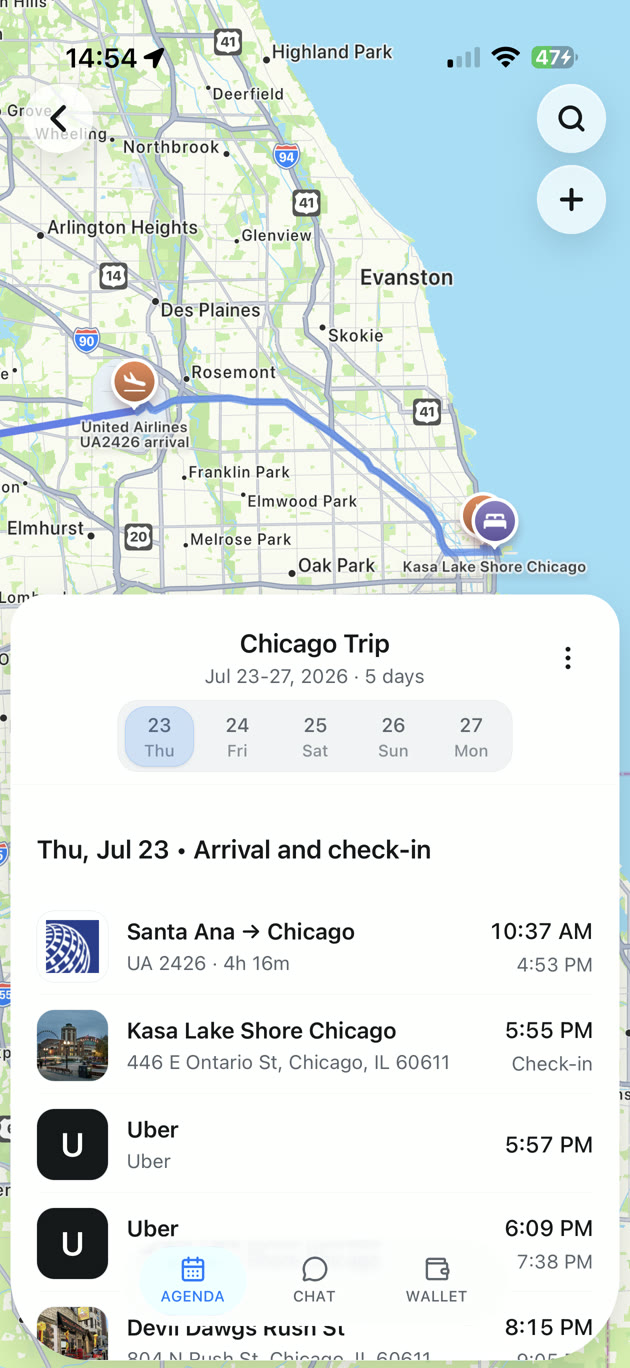
Make this the last time you hunt through an inbox for the same trip. TripNoted Free turns recognized booking emails into an itinerary, with flights, stays, and daily plans together. When a recognized booking update arrives, the trip details can update too.
Connect one Gmail mailbox to import the last six months of email, with scheduled checks every hour. You can also forward a booking email to your private TripNoted address or add plans yourself. Gmail is optional, and Free is not a trial.
On iPhone, downloaded trip details and supported edits work offline. Open the trip before you leave, while you have a connection. Reading the full original email needs a connection.

Connecting Gmail is optional. Read how TripNoted uses Gmail access if you want to know what the connection does.
Check your airline or travel seller account
Open the official airline app or website and look for My Trips, Manage booking, or a similar area. If the flight was booked through an online travel agency, open that seller’s account too. The seller’s order number and the airline’s booking reference can be different. If you need a ticket copy or the airline reference is missing, contact the seller that issued the booking.
If you contact the airline, use its official website or phone number. Have the traveler’s name, travel date, route, and flight number ready if you know them. Delta’s reservation help, for example, lists these details for a missing-confirmation request. Ask the seller to confirm the ticket status and resend the itinerary to the correct address. Avoid making a second booking before you know what happened to the first.
Search in Outlook or Apple Mail
Other mail apps have their own search controls. In Outlook.com, search normally checks all folders. Use its filters to look in Deleted Items or Sent Items, or narrow by sender, subject, attachment, and received date. Microsoft’s Outlook.com search guide lists the available filters and operators.
In Apple Mail on a Mac, type the airline or destination in the search field. If the current mailbox has no results, click Search all mailboxes below the field. Then refine by sender or attachment. Apple’s Mail search guide covers the Mac app. For another provider, start with its all-mail view, then check Spam or Junk and Trash if the search menu offers those folders. Search syntax can differ between services.
Compare your next place to look
Use the path that matches what you know. A mailbox search finds the original message; an airline or seller account may show the current reservation; TripNoted can organize a recognized booking already in Gmail.
| Where to look | Best when | What to know |
|---|---|---|
| Email search | You think the confirmation arrived but cannot find it. | Search all mail, then include Spam or Trash. Check which address received the booking. |
| Airline account or support | You need to check a current reservation. | Lookup details vary by airline. Use its official app, site, or support contact. |
| Travel seller account or support | You booked through an agency or travel site. | The seller may have the ticket copy and its own booking reference. |
| TripNoted Free | You want recognized bookings organized with your trip. | Automatic Gmail import, forwarding, or manual plans. It organizes available booking details rather than restoring a missing email. |
What if you deleted the confirmation?
Search Trash or Deleted Items and move the message back if it is still there. Gmail automatically removes messages from Trash after 30 days; emptying Trash can remove them sooner. If the message is permanently gone, ask the airline or seller for a new copy. Connecting a trip organizer cannot restore deleted email.
Does no confirmation email mean the booking failed?
No. A missing email alone does not tell you the reservation or ticket status. Check the seller’s account and ask its support team to confirm the booking. If you cannot remember which company you used, the merchant name on your card statement can help you identify who to contact.
What should you save once you find it?
Keep the latest confirmation, any ticket receipt, and the airline booking reference with your travel dates. Add the booking details to your itinerary and keep the source email. You can also add the flight to Google Calendar to see it beside the rest of your schedule.