How to Add a Flight to Google Calendar (Automatically or Manually)
By TripNoted · Updated October 8, 2026
You can add a flight to Google Calendar by hand, sync it from TripNoted Free, use Gmail booking events, or import an airline .ics file. Start with the manual method below, then see how to skip the typing and keep the whole trip together.
1. Add a flight by hand with local times
For an event you need to enter yourself, use the times shown for each airport. This sample shows how a flight across time zones can have two dates and two local times:
Depart · JFK
Nov 15, 2026
America/New_York · EST
Arrive · LHR
Nov 16, 2026
Europe/London · GMT
In Google Calendar on a computer, select Create, choose Event, then open More options. Add the airline and flight number as the title. Set the start time to the departure time in the departure city. Open the time-zone control and choose Use separate start and end time zones. Set the end time and date in the arrival city’s time zone. Add the airport codes and confirmation number to the event details, then save.
For example, enter 7:00 pm on November 15 in New York and 7:00 am on November 16 in London. The sample event lasts seven hours. Google Calendar converts events to UTC and shows them in the viewer’s local time zone. A clear city name beside each time helps when you check the event from another time zone.
On iPhone or iPad
In the Google Calendar app, tap Create, then Event. Add the flight name, times, date, and airport details. Tap Done, then Save. Google’s help page shows separate start and end time zones in the computer form. Use a computer for a flight that starts and ends in different time zones.
2. Skip the typing with TripNoted Free
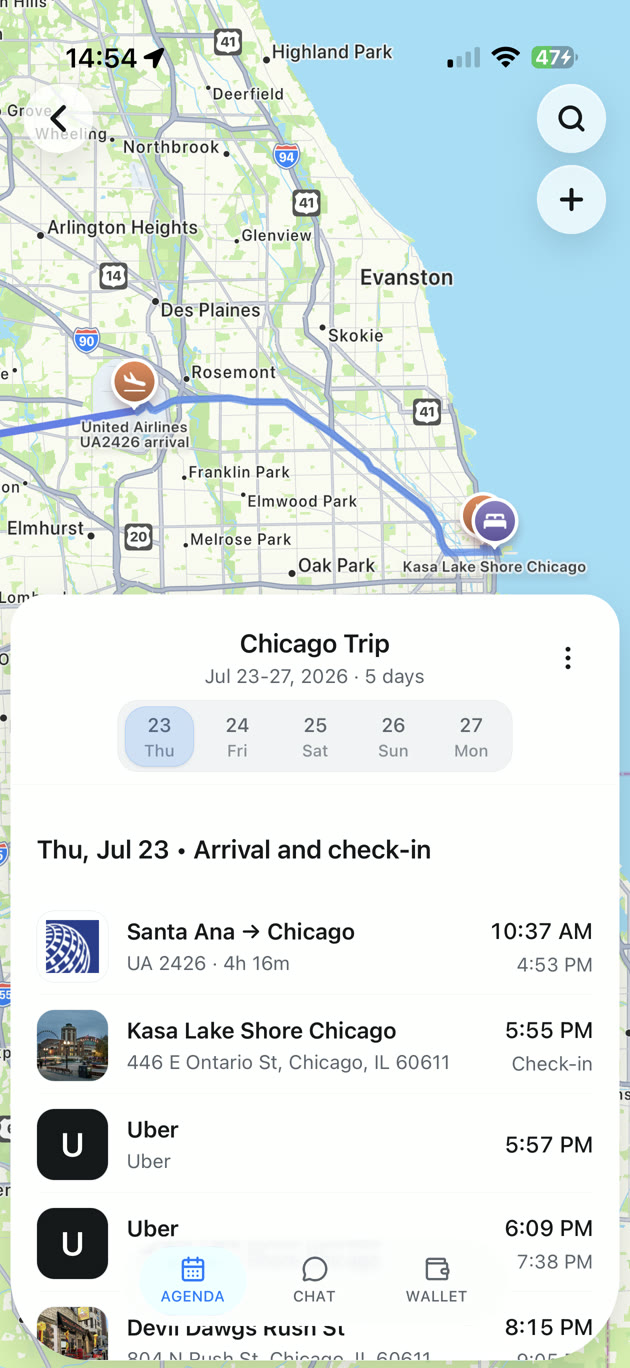
Adding one flight by hand is manageable. Keeping flights, hotels, transfers, and booking changes in order takes more work. TripNoted Free brings recognized Gmail bookings into an organized trip automatically, then lets you sync trip details with Google Calendar.
Connect one Gmail account to import your last six months of bookings. Free checks for new travel email every 60 minutes and updates your itinerary from recognized booking messages. You can keep your flights and stays together without copying each confirmation into a calendar event.
- Start a free TripNoted account and connect Gmail.
- Let TripNoted organize recognized bookings into trips.
- Use calendar sync to put trip details beside your other Google Calendar plans.
Free also includes saved travel links, trip sharing with view or edit access, and saved trip details with supported edits offline on iPhone. You can opt in to free delay and departure-time-change alerts for saved flights. These report flight changes; a Calendar reminder only tells you when an event is near.

See our TripNoted and Google Calendar comparison for more.
3. Add flight events directly from Gmail
Google Calendar can add some booking events from Gmail. On a computer, open Google Calendar and follow these steps:
- Open Settings, then select General.
- Select Google Workspace smart features, then Manage Workspace smart feature settings.
- Turn on Smart features in Google Workspace, then save.
- Return to Calendar settings. Under General, select Google Workspace smart features.
- Turn on Show events from Gmail.
Google says that events from Gmail can stay up to date when you change a reservation. By default, only you can see these events, even if you share your calendar. In the UK, European Economic Area, Japan, and Switzerland, events from Gmail are off by default.
When a flight appears, open the event to find its confirmation email. Keep that email as the source of truth for airline changes.
If a Gmail flight event is missing
If no event appears, check the two settings above. Then search Gmail for the airline’s confirmation. Google does not add events from messages sent to a mailing list, messages that copy you, or messages redirected from another account. Some accounts also cannot use events from Gmail, including government accounts and accounts without Gmail.
If the event is still missing, use the airline’s current confirmation to add it by hand or import a new .ics file. If an event exists but has the wrong time, open it and use the source confirmation to correct the details.
4. Import an airline .ics file
Some airlines offer an Add to calendar link or an .ics file with a booking. If you download the file, import it on a computer: open Google Calendar settings, select Import & Export, choose the .ics file, pick the calendar, and select Import. Choose a separate travel calendar if you have one. Google directs iPhone and iPad users to a computer to import calendar files.
An .ics import moves the event details from a file into your calendar. It does not set up a live link to the airline booking. If the airline changes your flight, check its latest email and edit the event you already imported. This avoids leaving two copies on your calendar.
Compare the four ways to add a flight
Choose manual entry for full control, TripNoted Free for the wider trip, Gmail events for supported confirmations, or an .ics file for a booking you can import.
| Option | Setup | When details change | Best fit |
|---|---|---|---|
| Manual entry | Enter the flight, dates, and both airport time zones. | Edit the event yourself. | One flight or a booking other methods do not recognize. |
| TripNoted Free | Connect Gmail and use calendar sync. | Recognized travel emails update the itinerary; Gmail refreshes every 60 minutes on Free. | Flights, stays, saved places, and shared trip plans in one place. |
| Google events from Gmail | Turn on Workspace smart features and events from Gmail. | Supported reservation events can update from Gmail. | Recognized bookings beside work and personal events. |
| Airline .ics import | Download the file and import it on a computer. | Edit the imported event yourself. | A booking with an available calendar file. |