How to Check Which Apps Can Access Your Gmail
By TripNoted · Updated November 4, 2026
Apps you tried for one task may stay linked to your Google Account. To check whether an app can access Gmail, open your Google Account’s linked apps list, choose Access to your Google Account, and read the app’s details. Use the permissions shown in your own account; app access can differ.

- 01Google Account
- 02Linked apps
- 03Access to your Google Account
- 04Choose an app → See details
Find apps with access to Gmail
Google groups different types of connections in the linked apps list. Follow these steps to find the app’s data access:
- Open your Google Account’s linked apps page. Go to myaccount.google.com/linkedapps. If Google asks, sign in to the account you want to check.
- Choose Access to your Google Account. This list shows apps that can access some Google Account data. If you have many, choose Access to, then Google product, and filter for Gmail.
- Select an app and open See details. Review the Google products named on the page and the actions the app can take. Read the full list before you decide whether to keep the connection.
- Check the app’s privacy information. Review its privacy policy and security details to learn how the developer uses and keeps data. Google says an app’s data retention depends on the developer’s policy.
Google’s linked apps instructions show the current menu labels and where to review access. An app can access only the data that you authorize, so read the details instead of relying on the app name alone.
Read what the access means
The details page helps you see which Google products an app can use and what kind of access it has. Some connections share basic profile information, such as your name and email address. Others can view or copy data. Some can also create, edit, or delete data in a Google service. Look for Gmail by name and read each action Google lists.
Gmail can hold private messages, contact details, and sensitive documents. Before you keep access, ask whether the app needs Gmail for a feature you use. If you cannot tell why it asks for a type of access, check the developer’s policy or contact the developer before you continue. Google explains what to consider when you share account data.
Do not confuse Gmail access with Google sign-in
Sign in with Google is a way to sign in to another app. It can share basic profile information, such as your name, email address, and profile picture. It is separate from an app’s request to access Gmail. A sign-in link by itself does not tell you that the app can read your mail.
Google Account linking is another type of connection. It links your Google Account with an account in another app, and it can support features that use that app’s service. Check the connection type and its details before you treat it as Gmail access. Google explains these differences in its guide to sharing Google Account data with other apps.
Example: review a travel app
Suppose TripNoted appears in your account. Search for it under Access to your Google Account, open See details, and check whether Google lists Gmail. Read the exact data and actions on your screen, then compare them with how you use the app.
If the details match a feature you use, you can keep the connection. If you no longer want that app to access Google data, choose Remove access on Google’s page and confirm. Google says this stops the app from accessing your Google Account and can make some features unavailable. It does not delete data the app already copied. Ask the developer about deleting data already held by the app.
Use TripNoted without connecting Gmail
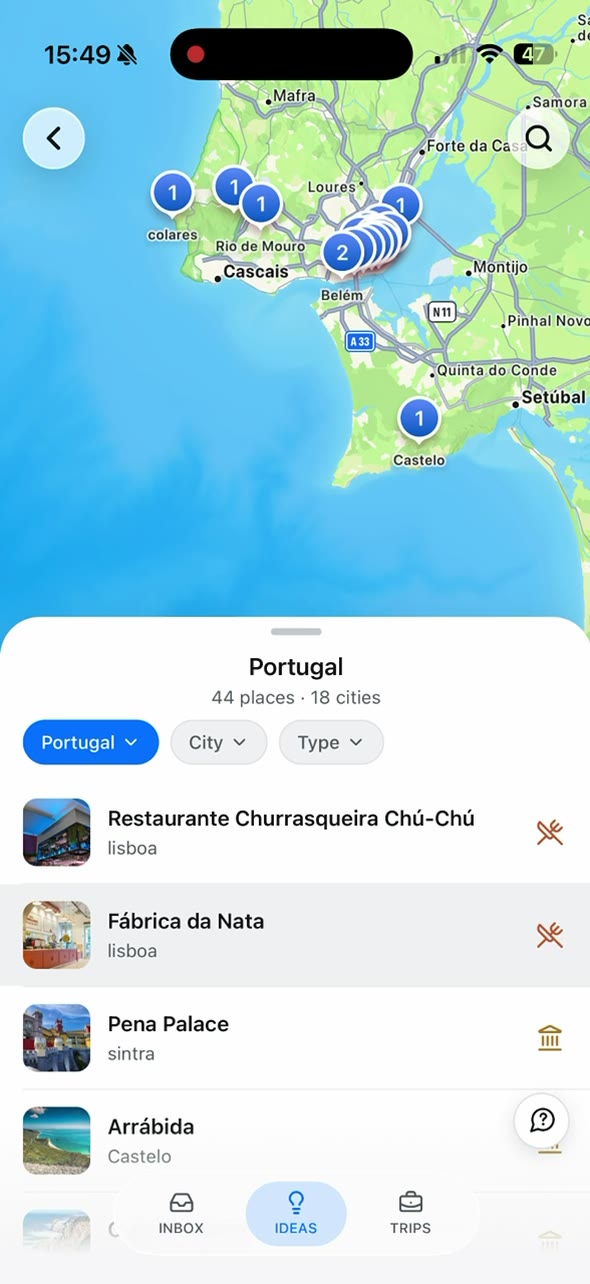
Gmail is optional in TripNoted Free. Enter your trip and booking details by hand without sharing the email, or forward a chosen confirmation to your private TripNoted address. You can also save travel links and collect places in Ideas.
For more detail, read how TripNoted uses Gmail access. To keep booking messages organized in your inbox, see our guide to organizing travel emails. You can also build a trip plan by hand.

Tell the connection types apart
| What you see | What to check | Your next step |
|---|---|---|
| Access to your Google Account | Google products, such as Gmail, and the actions the app can take. | Keep the connection if the access fits a feature you use. Otherwise, you can remove it in your Google Account. |
| Sign in with Google | A sign-in link can share basic profile details. It is separate from Gmail access. | Manage the sign-in link separately from access to Google Account data. |
| Google Account linking | Whether Google is linked to an account or service inside another app. | Review that link’s details separately from Gmail access. |
If you cannot find the app
Check that you signed in to the right Google Account. If the app appears only under Sign in with Google, review that sign-in link separately. If you still do not recognize a listed app, read its details and look for the developer’s privacy information before you give it access.
For help locating a booking first, see our guide to finding a flight confirmation email.