How to Organize Travel Emails Before Your Next Trip
By TripNoted · Updated October 18, 2026
Start with one Gmail label per trip. Add the original bookings and later changes, then check the latest booking update before you travel. This keeps the sources together while changes stay visible in your inbox.

Set up one Gmail label for your trip
A single label is easier to manage than many folders. Name it with the destination and dates, such as Example City + Example Bay · Nov 18–23. Hide it from the sidebar when you no longer need it.
- Create the label. On a computer, open Gmail. On the left, next to Labels, select Create new label. Enter the trip name and select Create. Gmail labels are not folders. One message can have more than one label, as Google explains in its Gmail label and archive guide.
- Find the messages you already have. Search for each airline, hotel, rail company, seller, and destination. Try words such as
booking,itinerary, or the trip month. Search the month you booked as well as the month you travel. - Apply the label. Select the checkboxes beside the matching messages. At the top of Gmail, select Labels, then choose your trip label. Keep both the first confirmation and later changes.
- Make new updates easy to see. When a change arrives, open it, compare it with the earlier confirmation, then add the trip label. Gmail conversation view can leave a new reply without the label, so check the newest message and apply the label again when needed.
- Use a filter only when the match is clear. Open Gmail’s search options, enter a sender or subject, then select Search to review the results. Use search options again to select Create filter. Choose Apply the label, then create the filter. Leave Skip the Inbox and Delete it off so changes stay visible.
From a message, choose More > Filter messages like these to start a filter. Review its search first; a sender may send both routine messages and important changes.
Google’s guides explain Gmail labels and Gmail filters.
Example: keep one trip current as messages change
Here is a fictional two-stop trip: three nights in Example City, followed by two nights in Example Bay. The bookings come from three different providers, but one trip label makes them easy to review. The latest detail goes in the itinerary; the original email and each change stay with the source messages.
| Source message | What changed | Current trip detail | Keep |
|---|---|---|---|
| Example Air booking · Aug 8 | Confirmation says the Nov 18 flight to Example City leaves at 9:40 a.m. A schedule update on Aug 13 changes departure to 10:15 a.m. | Use the updated 10:15 a.m. departure. | Label the booking and schedule update. |
| Example House Hotel confirmation · Aug 9 | The confirmation lists Nov 18–21. A change on Aug 14 sets check-in for 4 p.m. | Keep the same stay dates and use the new 4 p.m. check-in time. | Label both the confirmation and change. |
| Example Rail booking · Aug 10 | The booking confirms a Nov 21 train from Example City to Example Bay, 9:30–11:05 a.m. | Add the train to the Nov 21 plan. | Label the rail booking and keep its ticket file. |
Every provider, name, date, time, and detail in this example is fictional. Keep the full message chain, even when a later message has the current time or stay detail. That way you can check what changed and open the source if you need the full terms.
After you file the messages, use the current details to build your travel itinerary. If a confirmation is missing, use the separate steps in our guide to find a flight confirmation email.
Keep bookings and recognized changes in TripNoted Free
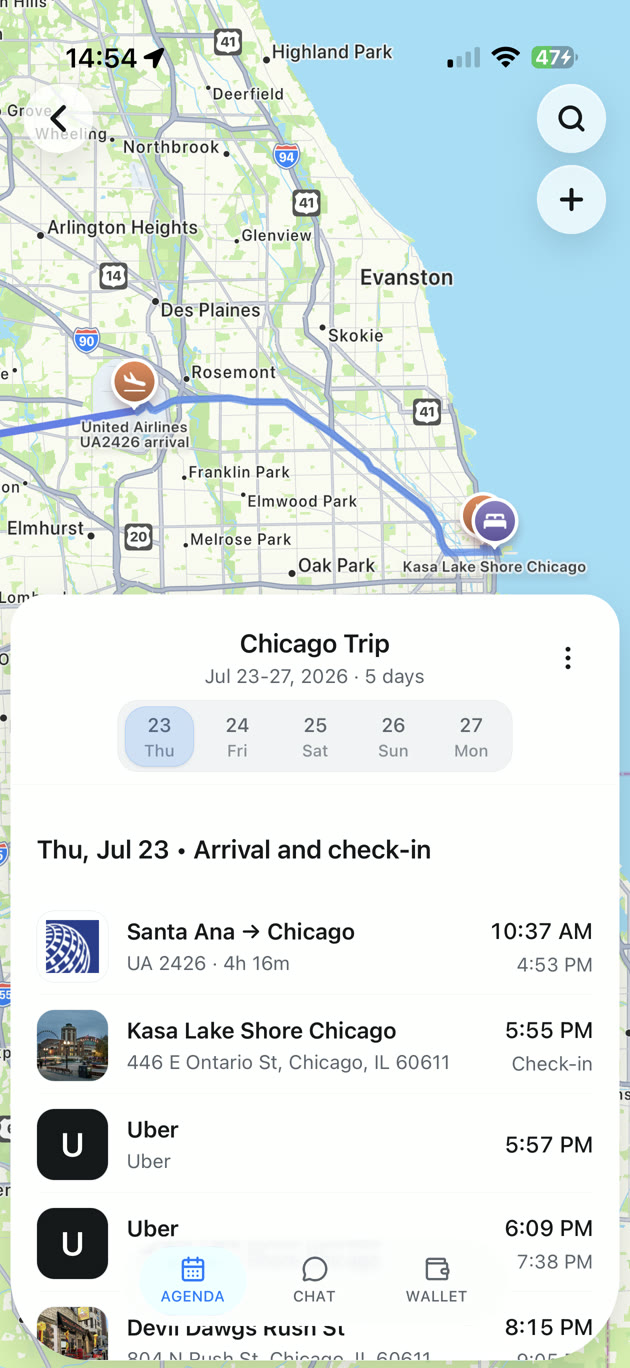
If you want the booking details in one trip, TripNoted Free can turn recognized Gmail travel emails into trips and itinerary items. Recognized booking updates can update those details. Your trip can then show flights, stays, and rail plans together instead of making you piece them together from separate messages.
Free connects one Gmail mailbox, imports the last six months when you start, and checks for new email every hour. You can also forward a booking message to your private TripNoted address or enter a plan yourself. Gmail is optional.
On iPhone, downloaded trip details and supported edits work offline. Open the trip while you have a connection before you leave. Opening the full original Gmail message needs Gmail access and a connection. See how TripNoted uses Gmail access for more.

Use folders and views in other email apps
Outlook.com folders and rules
In Outlook.com, right-click your mailbox name in the folder list and select Create new folder. Enter the trip name and press Enter. To move an older message, select it and use Move to on the command bar.
Outlook.com can also make a rule from a message: select the message, choose More actions, then Advanced actions and Create rule. Choose a folder, or select More options to set other conditions and actions. Select OK to save the rule. Rules can move incoming mail into a folder. For active travel, leave airline and hotel changes in the inbox until you have read them. See Microsoft’s instructions for Outlook.com folders and rules.
Apple Mail Smart Mailboxes and rules on Mac
In Mail on a Mac, choose Mailbox > New Smart Mailbox. Name it, then add conditions such as a sender or subject. If you add more than one condition, choose whether messages must match any or all of them. Select OK. A Smart Mailbox is a view of matching messages; it leaves those messages in their original mailboxes.
For a normal mailbox, choose Mailbox > New Mailbox and choose an account if you want it on that mail server. On My Mac keeps it on that Mac. To set a rule, choose Mail > Settings > Rules > Add Rule, then set the conditions and actions. A rule can move a message, so keep time-sensitive booking updates in view until you have checked them. Apple documents Smart Mailboxes, Mail rules, and mailboxes on Mac.
Keep updates, attachments, and important details together
- Keep both versions. A change message is a record of what changed. Do not replace or delete the first confirmation when you update your own itinerary.
- Keep the attachment with its email. If a message includes a ticket or hotel document, keep the message under your trip label or in its folder. Save a separate attachment copy in a trip folder if that helps. In Gmail, you can add eligible attachments to Google Drive. Keep the email so you can return to the sender and full message.
- Check the latest message by date. Read the newest update, then compare dates, times, traveler names, and booking status with the earlier message. If two messages disagree, use the provider’s official account or contact details to confirm what is current.
- Collect bookings from other inboxes. If someone else booked the trip, ask them to forward the confirmation or share the details. Keep personal confirmation codes and traveler details out of public posts.
Choose a way to organize travel email
Choose a method you will check before and during the trip. A folder or label keeps the source messages together. A trip organizer can put recognized booking details beside the rest of the itinerary.
| Method | Good for | How it handles new updates | Keep in mind |
|---|---|---|---|
| Gmail label | Keeping messages from several providers under one trip name. | Label new messages after you review them; use a narrow filter only when its match is clear. | A label can stay beside other labels and the inbox. |
| Outlook.com folder | Filing messages after you read them. | Check the inbox for changes, then move them to the trip folder. | Rules can move incoming messages out of the inbox. |
| Apple Mail Smart Mailbox on Mac | Seeing matching messages without moving them. | Matching mail appears in the view as it arrives. | Conditions depend on the sender, subject, or other criteria you choose. |
| TripNoted Free | Putting recognized booking details into a trip itinerary. | Checks one Gmail mailbox every hour for new email and recognized updates. | Initial import covers six months; forward messages or add plans manually when needed. |
Travel email questions
Should I create one label for every provider?
Usually, one label for the whole trip is enough. If you handle many bookings, you can add a second level for a provider or type. Start with the trip name so you can find all its messages in one place.
Should I archive travel confirmations?
Keep booking messages visible until you have checked the details and any changes. You can archive them later if you prefer; Gmail keeps archived messages in All Mail and under their labels. For a missing message, check the right account and search Spam, Trash, and archived mail, then follow our guide to finding a flight confirmation email.
Can TripNoted read Outlook or iCloud mail directly?
TripNoted’s connected mailbox import is for Gmail. You can forward a recognized travel email or add the plan yourself. Use forwarding when a booking arrives in another mailbox.
Once the source messages are together, you can check the hotel code in our hotel confirmation guide and compare flight codes in our flight confirmation number guide.