How to Save Places From a YouTube Travel Video
By TripNoted · Updated November 2, 2026
Start with one video and one city. Save the video in a named playlist. Then write down each stop with its time, name, and city. Check the location before you add it to a map list or trip.

Save the video and mark the moment
On an iPhone or iPad, open the video in the YouTube app. Below the video, tap More, then Save. YouTube may add it to the last playlist you used or to Watch Later. To choose a place for it, tap Change on the message, tap New playlist, enter a name such as “London ideas,” set the privacy, then tap Create. For a Short, tap More, then Save to playlist, then New playlist. Enter a name, set privacy, then tap Done. See YouTube’s playlist steps for iPhone and iPad.
Next, move the video to the chapter or moment that shows the place. Tap Share, turn on the Minute : Second option, then tap Copy link. The shared link can start at the time you chose. Keep it beside your place note. YouTube’s sharing steps show this option.
Some videos have chapters and some do not. If there is no chapter for the place, find the moment yourself and save a link that starts there. YouTube says creators can add chapters, and automatic chapters do not appear on every video. Read YouTube’s chapter rules if you need help.
Make a note you can check later
A playlist keeps videos together. A short note turns one moment into a place to check. Make one note for each stop:
- Keep the source. Write the video title and creator. Add the link at the time you saved.
- Copy the name as shown. Use the chapter title, a sign in the video, or the creator’s description. Keep the exact wording until you confirm it.
- Add the city and country. Many businesses share a name. The destination helps you find the right one.
- Check the place. Search the name in a map. Compare the city, address, and photos. For a business, check its own site. For a landmark, use an official visitor or city source.
- Mark any doubt. If you cannot confirm the place or branch, write “needs checking.” Do not add a guess to your trip.
A checked example from a London guide
In Backpack Gringo’s London travel guide, the video description names “Big Ben Clock Tower” at 03:38. Here is what a useful source note looks like.
| Video moment | Place note | Location check |
|---|---|---|
| Backpack Gringo’s London guide at 03:38 “Big Ben Clock Tower” | Big Ben / Elizabeth Tower Palace of Westminster SW1A 0AA, London | UK Parliament names Big Ben and Elizabeth Tower. Its visitor directions list SW1A 0AA for the Palace of Westminster. |
Use the same pattern for your own video: time, exact clue, city, and a source that confirms the location. Check opening times and tickets with the attraction before you go.
Save confirmed places to a map list
On an iPhone or iPad, search the confirmed place in Google Maps. Tap its name or address, tap Save, then choose a list or make a new one. Name the list for the trip, such as “London video places.” Google’s place-list steps show where to create and find lists. Keep the video link and time in your note so you can return to the recommendation.
For more ways to sort and share map lists, read our Google Maps Lists guide. When you have a few confirmed stops, use our guide to plan a trip from saved places and group nearby stops around fixed bookings.
Keep video inspiration with your trip in TripNoted Free
Bring your video finds into TripNoted Free, where saved places, bookings, and daily plans can stay together. Add a supported YouTube link, then open My Links to review the source and any places found. Check each place before you add it to a trip. You do not need Gmail for this workflow.
- Copy one video link. Use the timestamp link when you want to return to one moment.
- Add the supported link. Paste it into Add a link, or share it from your iPhone if TripNoted appears in the share sheet.
- Review My Links. Check the source and any place details that appear.
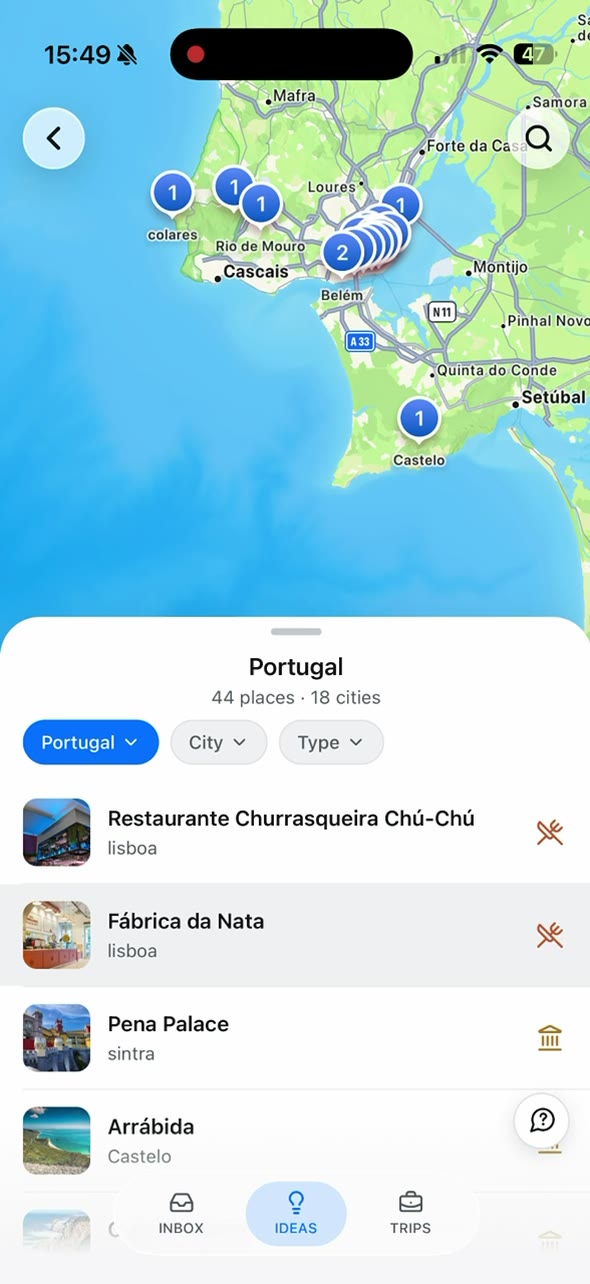
Use Ideas to review saved places by country, city, or type. Add only the places you choose to a trip.

When a video does not give you a clear place
There is no chapter for the stop
Check the description and transcript if they are available. You can also move through the video and copy a link at the moment you find. A video does not need chapters for you to keep a time note.
The place name is vague
Use a clear sign, caption, or creator note as a clue. Search the name with the city. If more than one place matches, compare the address and photos with the place’s own site. Leave it marked “needs checking” if you cannot confirm it.
TripNoted shows no place
Keep the video link and use the manual steps above. A source link can still be useful even when it does not return a place.
Choose where to keep each part
| Option | Keeps | Best next step |
|---|---|---|
| YouTube playlist | Travel videos for one destination. | Add a time link and place note for each stop. |
| Notes app | Video links, timestamps, names, and source checks. | Search the exact place and check its address. |
| Google Maps list | Places you have matched to a map listing. | Save a place only after you confirm its city and branch. |
| TripNoted Free | Supported links and any Ideas that the source returns. | Review My Links, then add only checked places to a trip. |
Common questions
Does a YouTube playlist save the places too?
No. It keeps the videos together. Write a place note and save confirmed places to a map list or trip.
Can I share a link that starts at a place?
Yes. Move to the moment, tap Share, and turn on the time option before you copy the link. The recipient still needs to check that the place name is correct.
Will TripNoted find every place in the video?
No. Add a supported link and check My Links for any places it returns. Use the manual steps when none appear or when a place needs a closer check.