Google Maps Lists: How to Organize Places for Your Trip
By TripNoted · Updated October 30, 2026
Google Maps lists give your travel ideas a home you can find again. Save the places you like, add a useful note, and open the right list when you need it. You can also hide a list’s pins to clear the map or share places with the people coming along.

Choose a simple list system for your trip
Start with a name you will recognize, such as Porto – Maybe. If you want more structure, use three lists for your own planning stages:
- Porto – Maybe: candidate places you are still considering.
- Porto – Shortlist: places that fit the dates, budget, or area for your upcoming trip.
- Porto – Booked: places where you already have a confirmed reservation or ticket.
These are names you choose and update yourself. Add a place to “Booked” only after you receive its confirmation. Keep the original ticket or reservation with your itinerary; a list name is a reminder of your decision.
Example: keep possibilities separate from bookings
Here is a fictional shortlist. The place names and booking details below are examples, not real reservations.
| List | Example place | Useful note |
|---|---|---|
| Porto – Maybe | Hilltop Gallery | Could suit a rainy afternoon. Check opening hours. |
| Porto – Shortlist | Riverside Café | Lunch option near the hotel. No reservation made. |
| Porto – Booked | Harbor Museum | Ticket confirmed for Saturday at 10:30 a.m. Keep the original ticket in your own file folder. |
Keep the ticket or confirmation easy to find with our guide to organizing travel documents.
Create a list and save places
On iPhone or iPad
- Open Google Maps and tap You.
- Tap New list.
- Enter a name and description, then tap Save.
- Search for a place or tap it on the map. Tap the place’s name or address at the bottom.
- Tap Save, then choose your list. Tap New list if you want to make one now.
Give each list a purpose you can remember. For example, write “Rainy-day museum option” in a place note, rather than relying on a vague label such as “Good.”
On a computer
- Open Google Maps and click Saved. If you do not see it, open Menu.
- Click New list, then enter a name and description.
- Search for a place or click it on the map, then click Save.
- Choose the list. To create one at this point, click New list, enter a name, then click Create.
Google saves your lists to your account. To find them on a phone, tap You and select a list under Your lists. On a computer, click Saved. Use the same Google Account on each device.
For the full steps, read Google’s guides for iPhone and iPad or computer.
Add notes and keep each list current
On iPhone or iPad, open You, choose a list, and select a place. Tap Add a note about this place, enter your note, and tap Save. Google allows up to 4,000 characters. Use a short reminder such as “Check Monday opening hours” or “Ask about a table outside.”
To change a list’s name or description on iPhone or iPad, tap You, tap More beside the list, and choose Edit list. Update the details and tap Save. Choose Delete list only when you want to remove the whole list.
To remove one place on iPhone or iPad, open the list, tap More, choose Edit list, then tap Remove beside that place. On a computer, click Saved, open More beside the list, choose Edit list, and click Remove beside the place. Removing one place keeps the rest of the list.
Hide or show pins without deleting a list
To clear map pins while you work, open You on iPhone or iPad, or Saved on a computer. Open More beside the list and choose Hide on your map. Choose Show on your map when you want the pins back. Hiding a list changes the map display. It does not delete the list or its places.
On Android, you can also set a custom order. Tap You, open the list, tap Edit, turn on Customize list order, then hold the four blue lines beside a place and move it. Tap Save. Google’s Android list guide shows these controls.
Share a view link or invite editors
Give companions view access when they only need to find the places. Invite editors when they should add or change places.
- iPhone or iPad: tap You, then More beside the list. Choose Share list for a view link. To allow changes, choose Invite collaborators or open Sharing options and tap Invite editors.
- Computer: open Menu → Saved, then More beside the list. Choose Send a link to view for read access. Choose Invite to edit → Get a link to invite editors.
Anyone with a shared link can find the list. Viewers can also see members’ names and profile photos, and who added or edited places and notes. Send the link only to people you intend to share with. Google does not allow you to share the Starred places list; make a separate trip list instead.
If your group needs a shared plan for bookings and daily activities too, see our guide to group trip planning apps.
If you cannot find a list or its pins
Check that you are signed in to the Google Account that saved it. Open You → Your lists on iPhone or Saved on a computer; check Menu if Saved is hidden. If the list is there but its pins are missing from the map, open its More menu and choose Show on your map.
Keep travel ideas and trip plans together with TripNoted Free
Google Maps lists help you collect places. TripNoted Free gives you a place for saved travel links, Ideas, and the plans you add to a trip. Use Add a link with a supported web or social link. TripNoted can keep the source and any Ideas it creates; add an Idea to a trip when you are ready. You can also create a trip and plans yourself. Gmail is optional.
TripNoted does not automatically import Google Maps lists. Keep the map list for places and use your itinerary for flights, stays, dates, and times. Trip sharing with view or edit access is included in Free.
Before you travel, check which trip details you can open without a connection in our offline itinerary guide.

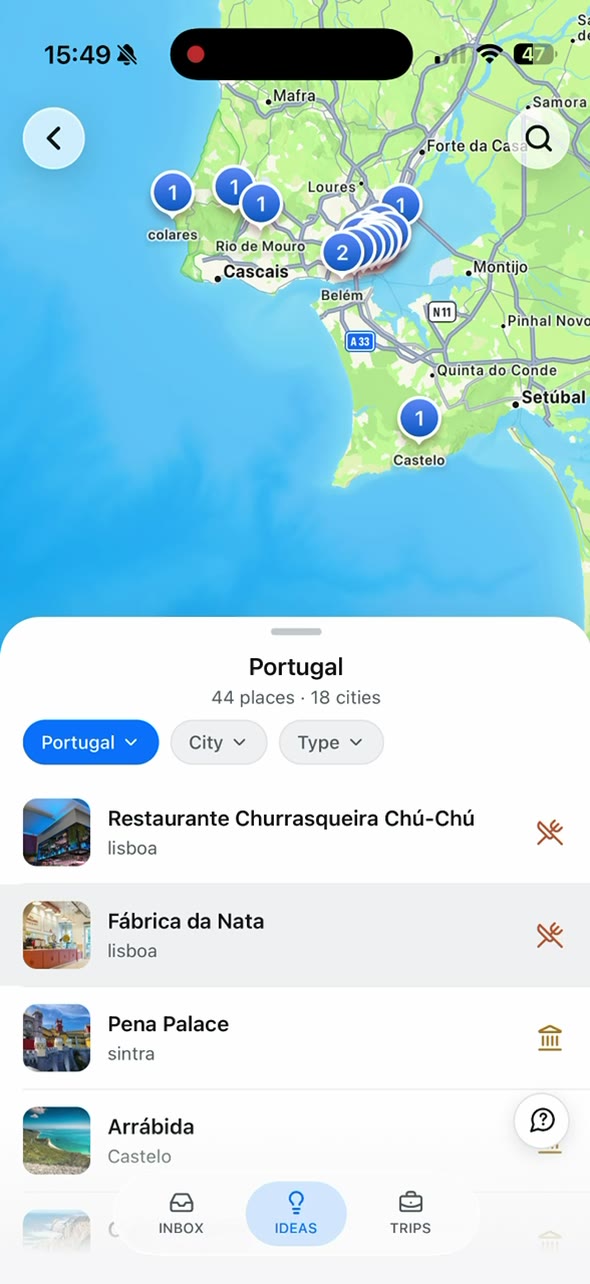
Choose the right place for each detail
| Your task | Google Maps list | TripNoted Free |
|---|---|---|
| Save a place to consider | Add it to a named list such as “Porto – Maybe.” | Save a supported web or social link. TripNoted can keep its source and any Ideas it creates. |
| Decide what to do | Use a shortlist for candidates and a separate list for places with confirmed bookings. Update the lists yourself. | Add an Idea to a trip or make a plan by hand. |
| Keep booking details and dates | Use the map list for places, not as a record of flights or reservations. | Keep bookings, dates, and manual plans in a trip. Gmail import is optional. |
| Plan with companions | Share a view link or invite list editors. | Share a trip with view or edit access. |
For routes, Google My Maps, and offline map areas, see our broader Google Maps trip-planning guide. If you want a shared plan for bookings and each day, read our guide to sharing a travel itinerary.
Google Maps list questions
How many places can one list hold?
Google says saved lists are limited to 3,000 entries. A list with more entries may not display well. Split a large collection into smaller lists.
Does saving a place download an offline map?
No. Saving a place to a list is different from downloading an offline area. See the Google Maps trip guide for offline map steps.
Can I export my saved lists?
Google’s list guides include an export path through Google Takeout. Select Saved, choose Next Step, set the destination, frequency, and file format, then choose Create Export. This downloads Google data; TripNoted does not automatically import that export.