How to Use Google Maps to Plan a Trip
By TripNoted · Updated October 14, 2026
Google Maps makes it easy to turn a long wish list into a trip that makes sense on the ground. Save the places you want to visit, see what is close together, and check the route before you fill each day. Start with a saved list on your phone. Use Google My Maps on a computer if you want a custom map with separate layers.

1. Make a list for your trip
Give your trip its own list instead of mixing every destination into Favorites. A name such as Kyoto weekend makes it easy to find later.
- Open Google Maps on iPhone or Android and sign in to the Google account you will use on your trip.
- Tap You, then New list.
- Add a name and a short description. On Android, choose Private or Shared as part of setup.
- Tap Save.
- Search for your hotel, open its place details, tap Save, and select your new list.
- Repeat for restaurants, sights, and other places you want to visit.
On a computer, open Google Maps and choose Saved → New list. If Saved is hidden, open the menu first. Search for each place and use its Save button to add it to the list.
Save the actual place, rather than a nearby street or a similarly named branch. Check the address, opening hours, and entrance before you build the day around it.
2. Turn your saved places into a realistic day
Open your list and look for small groups of places near each other. Plan one area at a time, with room for a meal and a break. A short list you can enjoy beats a map full of stops you will rush through.
- Start with the fixed plans. Put a booked tour, restaurant reservation, or timed ticket into the day first.
- Build around them. Choose nearby places for the time before and after the booking.
- Check the journey. A place that looks close on the map can still need a train ride or a long walk.
- Keep a few extras. Save optional places for good weather, spare time, or a change of plan.
On iPhone or iPad, you can add a note to a saved place. Open You, open the list, select the place, and tap Add a note about this place. Use it for something useful, such as “Book tickets before we go” or “Lunch option near the hotel.” Save the note when you are done.
A saved list collects places. It does not turn them into a dated itinerary with arrival times, hotel check-ins, and confirmed bookings. Once your ideas become actual plans, give those details a place too.
Bring your bookings and daily plans together with TripNoted Free
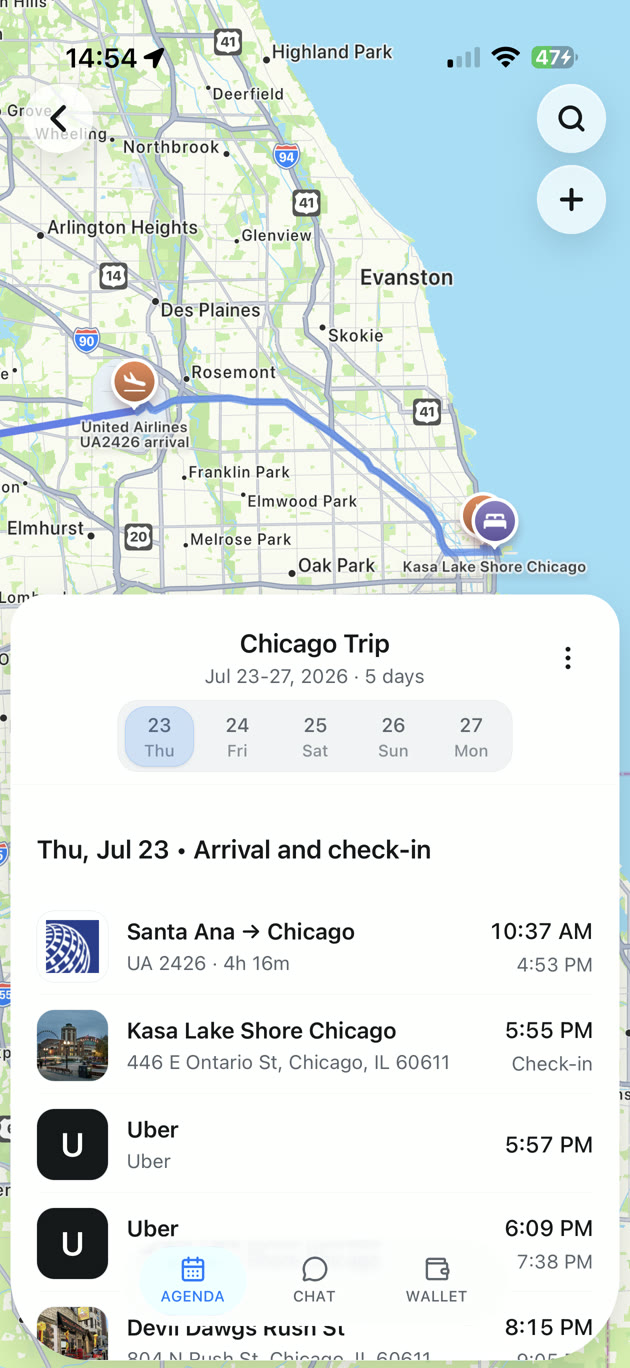
Google Maps helps you choose where to go. TripNoted helps you keep the trip together: flights, stays, booking details, saved ideas, and plans for each day.
Connect Gmail and TripNoted Free organizes recognized booking emails into trips. You can also create a trip yourself, add plans, and save supported travel links from the web or social apps. Add an Idea to your trip when you decide to go, then keep its date, time, location, and notes with the rest of the itinerary.
Share a trip with view or edit permission so your travel companions can follow the plan or help build it. On iPhone, saved trip details and supported trip edits work offline. Start with Free and use Google Maps for navigation when you are on the move.

Want your plans in the calendar you already use? Follow our guides to Google Calendar or Apple Calendar.
3. Check a route with several stops
Use directions to check how the day fits together. You choose the order of the stops; move them around to compare the journey.
- Search for your first destination in Google Maps and tap Directions.
- Set your starting point, such as your hotel.
- On iPhone or Android, open More → Edit stops. Add the other destinations and tap Done.
- Drag the stops into the order you want to visit them.
- Choose a supported travel mode and check the estimated journey time. Add time for each visit, queues, and breaks yourself.
On a computer, click Directions, enter the start and destination, and use Add destination for more stops. Drag a destination to change its order.
Google Maps allows up to nine stops, including the final destination. Multi-stop directions do not support public transit or flights. For a day with several train or bus journeys, check each leg separately. For a longer road trip, split the route into days.
A simple Kyoto planning example
Save your hotel, a museum, a lunch option, and a second sight in a Kyoto list. If the museum ticket is for 10:30 a.m., make that the fixed point. Check the journey from your hotel first, then see whether lunch and the second sight fit comfortably afterward.
Keep the other places in your list as options. Put the confirmed museum time and hotel details in your itinerary. The map answers “Where are we going?” Your dated plan answers “When do we need to be there?”
4. Share the list with your travel companions
Open You in Google Maps and select your list. Use Share or Share list to send a view link. If your companions should add and change places, use Invite collaborators or Invite editors instead. The label depends on the device.
On a computer, open the menu, choose Saved, and open More beside the list. Choose Send a link to view, or Invite to edit → Get a link.
Share a view link for a finished shortlist; invite editors when you are choosing places together. Anyone with a view link can access a shared list. List viewers can also see members’ names and profile photos and who added or edited places and notes. Use a dedicated trip list and share it with the people you intend.
For shared bookings and a plan for each day, see our guide to group trip planning apps.
5. Use Google My Maps for a custom trip map
Choose My Maps when you want more control over how your research looks. You can put restaurants, sights, and travel routes on separate layers, or use one layer for each day. Set it up on a computer.
- Open Google My Maps in your browser, sign in, and click Create a new map.
- Give the map a name and description.
- Search for a place and click Add to map. You can also use Add marker to place a pin.
- Group places into layers that make sense for your trip.
- Use Add directions to save a route in its own layer. Add more destinations when needed.
- Share the map through Google Drive, with Can view or Can edit permission.
Google My Maps is separate from the standard Maps saved-list feature. Google does not support creating My Maps on mobile, and My Maps is not available offline. You can view a map from Google Drive in your phone’s browser. If your main goal is an easy list to use while you explore, start with ordinary Google Maps lists.
Before you leave: download the area
In the Google Maps app, open your profile, choose Offline maps → Select your own map, adjust the area, and tap Download. Do this while you have a connection and include the full area you plan to travel through.
Offline maps support driving directions when the whole route fits inside the downloaded area. They do not provide offline walking, cycling, or public transit directions. Live traffic and alternate driving routes are also unavailable offline. Some regions do not support downloads.
Before a walking day, check the route while online and keep the key addresses and booking times in your saved trip. Downloading a Google Maps area does not make a custom My Maps map available offline.
Which tool should you use for each part of the trip?
| Tool | Best for | How you use it | Keep in mind |
|---|---|---|---|
| Google Maps lists | Collecting places and choosing nearby stops. | Save places on phone or computer; share a view or edit link. | A list is a collection of places, not a timed itinerary. |
| TripNoted Free | Bookings, dates, saved ideas, and a shared trip plan. | Import recognized Gmail bookings or add plans yourself; use the web app or iPhone app. | Use Google Maps separately for navigation. Google Maps lists do not automatically sync into TripNoted. |
| Google Maps directions | Checking travel time between stops. | Add destinations and reorder them. | Up to nine stops including the final destination; no multi-stop transit directions. |
| Google My Maps | A custom map with layers and saved routes. | Create it on a computer and share through Google Drive. | Mobile creation and offline use are not supported. |
Start with a few places you are excited about, group them into a day you can enjoy, and keep your confirmed bookings in a clear travel itinerary. That gives you a plan to follow and enough freedom to find something unexpected along the way.