How to Add a Flight to Apple Calendar on iPhone
By TripNoted · Updated October 9, 2026
You can add a flight to Apple Calendar by hand, sync your bookings with TripNoted Free, or use a suggested event from your booking email. The key is to save the right dates and time zones. Start with the manual method, then see how to bring your flights and the rest of your trip together with less work.
1. Add your flight manually on iPhone
Keep your airline confirmation open so you can check the flight number, airports, dates, and times.
- Open Calendar and tap the + button to create an event.
- Use a clear title, such as Flight to New York · LAX → JFK. Include the flight number.
- Add the departure airport as the location.
- Set the start date and departure time. Open Time Zone and select the departure city.
- Set the end date and arrival time in that same time zone. Use the example below if the airports are in different zones.
- Choose the calendar where you want the event. Add an alert and put both airport-local times in Notes.
- Save the event, then open it to check the details.
You can change a saved event by opening it and tapping Edit. Apple explains the event controls in its Calendar guide.
Get the arrival time right across time zones
Airline confirmations show the local time at each airport. For a manual event using the departure city’s time zone, convert the arrival time to that zone before you enter it.
Depart · Los Angeles
November 15 · PST
Calendar start: 8:00 am Los Angeles
Arrive · New York
November 15 · EST
Calendar end: 1:30 pm Los Angeles
For an overnight flight, check the arrival date as well. Apple Calendar normally displays events in your current location’s time zone. Its Time Zone Override setting changes the display zone; it does not correct an event entered with the wrong time. See Apple’s time-zone instructions.
2. Skip the copying with TripNoted Free
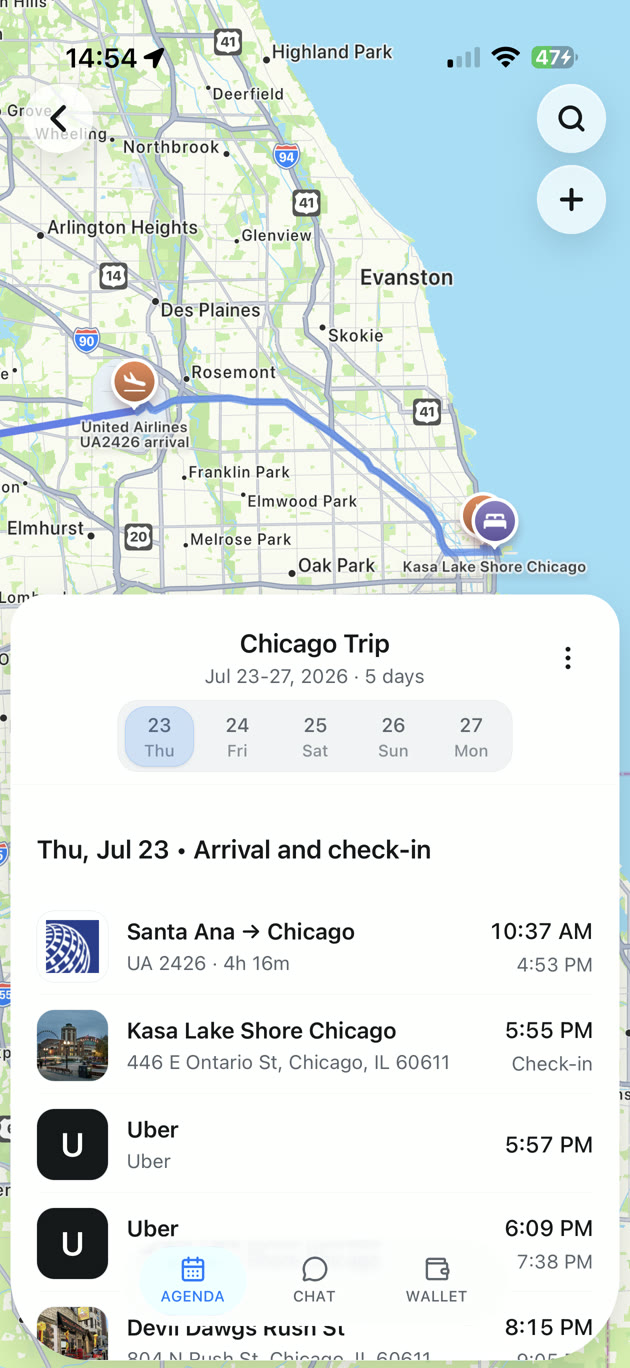
A calendar gives your flight a place in your day. TripNoted brings the whole trip together: flights, hotels, booking details, saved places, and plans you can share.
Connect Gmail and TripNoted Free automatically turns recognized booking emails into an organized itinerary. Free includes one Gmail account, an initial six-month import, and checks for new travel emails every 60 minutes. Recognized booking changes update your itinerary, so you do not have to copy every new confirmation by hand.
Sync your trip to Apple Calendar
- Open TripNoted on iPhone and connect Gmail to bring in your bookings.
- Open the calendar settings in TripNoted and find Apple Calendar.
- Tap Choose Calendar, allow the requested calendar access, and select a writable calendar.
- Keep Apple Calendar sync enabled. Tap Sync Now to refresh the saved events.
- Open Apple Calendar, tap Calendars, and make sure the selected calendar is visible.
Apple Calendar sync runs on your iPhone. When new booking details arrive, open TripNoted and use Sync Now if you want to refresh your calendar before you leave. Edit trip details in TripNoted so the itinerary and its calendar events stay together.
Calendar sync is included in Free. So are shared trip editing and saved trip details with supported edits offline on iPhone. You can also opt in to free flight delay and departure-time-change alerts. A calendar reminder tells you an event is coming; flight alerts help you follow changes to the flight itself.

Start on the web or download the iPhone app. Set up Apple Calendar sync from the iPhone app.
3. Use a flight suggestion from Apple Mail
Siri can find flight reservations in Mail, Messages, and Safari and suggest events for Calendar. This can save you from typing a booking that your iPhone recognizes.
On recent iOS versions, open Settings → Apps → Calendar → Siri and enable Show in App. Then check your booking message and Calendar for a suggested event. Review the flight number, dates, and times before you add it. The exact controls can vary with your iOS version.
A suggestion is useful for a single confirmation. If it does not appear, use manual entry or TripNoted to organize the booking. After a flight change, check the saved event against the latest airline message rather than assuming the suggestion has kept it current.
4. Use an airline calendar file or link
Check the airline’s booking page or confirmation for an Add to calendar option. If it opens an event preview on your iPhone, review the details and save it to your chosen calendar.
If the airline supplies a downloaded .ics file that does not open as an event on iPhone, you can import it with Calendar on a Mac. Open Calendar, choose File → Import, select the file, then choose its destination calendar. Apple documents this in its calendar import guide.
A one-time file import saves a copy of the event. It does not create a live connection to your airline reservation. After a change, edit the existing event or remove the old copy before importing a replacement.
A calendar subscription is different. Apple Calendar can subscribe to an external .ics calendar URL through Calendars → Add Calendar → Add Subscription Calendar. Use this only when the provider gives you a subscription feed. A feed can receive provider updates; a downloaded file is a one-time copy. Apple’s multiple-calendar guide explains subscriptions.
If your flight is missing or the time looks wrong
- Check which calendars are shown. In Apple Calendar, tap Calendars and enable the calendar where you saved or synced the flight.
- Check TripNoted’s calendar access. In iPhone Settings, find TripNoted’s calendar permission. Allow the access requested by sync, then return to TripNoted and tap Sync Now.
- Check the trip first. If the flight is missing from TripNoted, check that the booking is in your connected Gmail account. Add or correct the trip details if needed, then sync.
- Check the date and zone. A flight that lands the next day needs that arrival date. Compare the event with both airport-local times, and check Time Zone Override if the displayed time is unexpected.
- Keep one copy. If you entered the same flight manually and later synced it, remove the old manual event to avoid two reminders.
If you use a Google calendar in the Apple Calendar app, you can also follow our guide to adding a flight to Google Calendar. For the rest of your travel plans, explore TripNoted’s travel itinerary planner.
Compare the ways to add a flight to Apple Calendar
Choose manual entry for a single event, TripNoted Free for your whole trip, a suggestion for a recognized message, or an airline file when one is available.
| Option | Setup | When details change | Best fit |
|---|---|---|---|
| Manual entry | Type the booking and check the dates and time zone. | Edit the event yourself. | A single flight or a booking you need to add yourself. |
| TripNoted Free | Connect Gmail, then choose a calendar in the iPhone app. | Recognized booking emails update the itinerary. Sync on iPhone to refresh calendar events. | Flights, stays, saved places, and shared trip plans together. |
| Apple event suggestion | Enable suggestions and review a recognized booking. | Check the event against your latest confirmation. | A supported reservation found in Mail, Messages, or Safari. |
| Airline calendar file | Use the airline’s calendar option or import its .ics file on Mac. | Edit or replace a one-time import. Subscription feeds are separate. | An airline booking with a calendar file or link. |