How to Find and Organize Your Past Trips
By TripNoted · Updated November 7, 2026
Trying to remember where you stayed or which train you took? Start with one trip. Search your email for the destination and a rough booking window, then use the flight or hotel confirmation to pin down the travel dates. TripNoted Free can organize recognized bookings from the last six months of Gmail on your first import. You can also add any older trip you want to keep.

Find the old confirmations in Gmail
- Start with one detail you remember. Search for the city, hotel name, airline, or booking site. If you stayed outside the city, try the property name or nearby station.
- Search when you booked. In the Gmail search box, combine a place with
after:andbefore:. These filters apply to when the message arrived. Include the months before you traveled, especially if you booked early. Google shows more ways to narrow a Gmail search. - Open the confirmation and any later change. Compare the travel dates, property or route, and booking reference. If a later message cancels a reservation, leave it out of the record of what you actually did.
- Write down the essentials. Keep the destination, first and last travel dates, and the stay or transport you want to find again. Add one note you would want on a return visit, such as which station exit took you closest to the hotel.
Example: Rebuild a weekend from two messages
Say you remember a weekend in Montréal in September 2024 and think you booked that summer. Try after:2024/05/01 before:2024/10/01 Montréal. If it comes up empty, try Montreal without the accent or search for the booking company.
In this example, a June email confirms a two-night stay starting September 13. A July email lists a train on September 15. Together, they give you a trip record you can recognize later:
- Trip: Montréal weekend, September 13–15, 2024.
- Stay: The hotel name and address from the confirmation.
- Ride home: The September 15 train and the station you left from.
If your search turns up two hotels, check your change or cancellation messages. A photo or a receipt can help you remember which one you used. For one booking you cannot find, follow our guide to finding a flight confirmation email.
Keep past trips in TripNoted Free
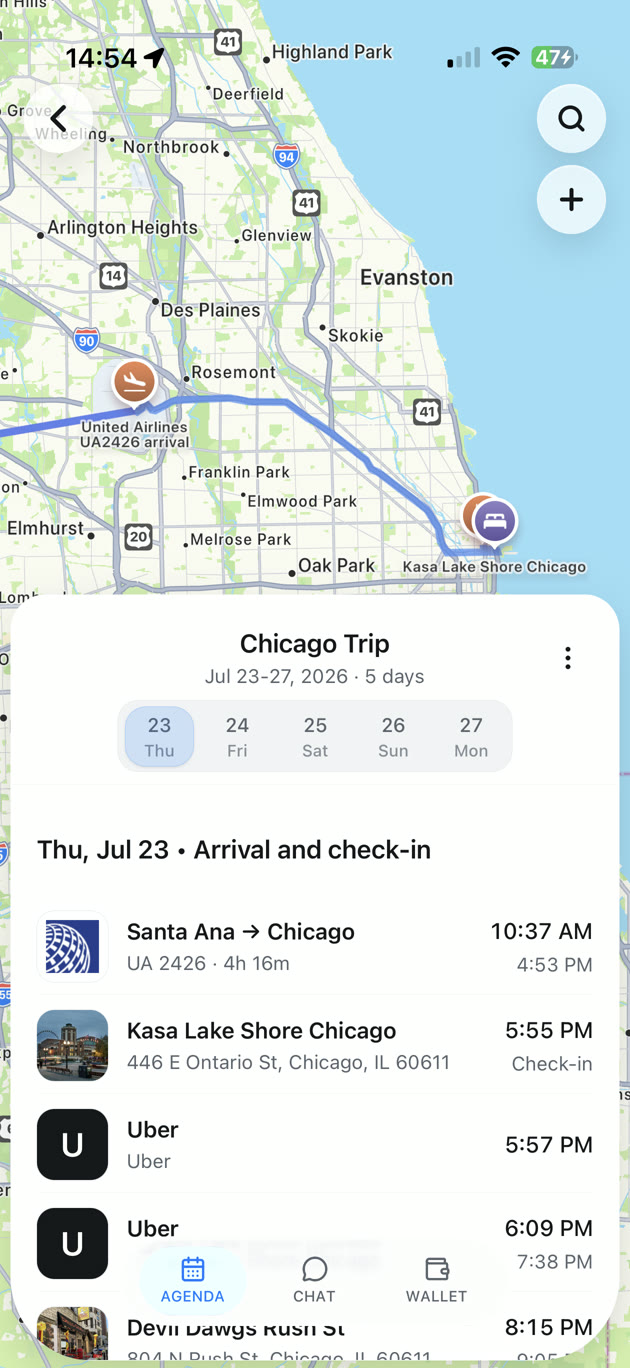
Open TRIPS on iPhone and look for the trip under your past trips. Search by name if you have several visits to the same place, then open its AGENDA to check the dated plans. If you connect Gmail, TripNoted Free starts with six months of recognized booking email from one mailbox. For an older weekend you want to save, create the trip yourself and add the hotel or train from the confirmation you found.
That gives you one place to look up the stay you liked and the route you took. If you also want to organize bookings for an upcoming trip, see how to make an itinerary from email.

Check your travel history before you rely on it
- Confirm which mailbox you used. Check a work inbox, another email address, or the provider account if the booking is missing from Gmail.
- Check when the email arrived. The first import covers six months of email. If you bought the ticket earlier, a recent trip can still have an older confirmation.
- Choose how much history you need. Add one or two older trips by hand for free. If you want to pull in a much larger Gmail archive, TripNoted Plus offers a separate older-history import you can request after the initial import.
- Review one trip at a time. Check the destination, dates, stay, and main transport. If you visited the same city twice, use the dates to keep the two trips distinct.
Keep the source confirmations if you need receipts or booking references. Our guide to organizing travel documents shows how to keep those files easy to find.
Choose the easiest way to recover a trip
| What you need | Best starting point | What to check |
|---|---|---|
| One old hotel or train | Search Gmail or the provider account. Add the detail by hand if you want to keep it. | Try the booking month, which may be earlier than the travel month. |
| Recent trips in one list | Connect one Gmail mailbox to TripNoted Free. | Review recognized bookings from the six-month initial import. |
| A larger Gmail archive | Request the separate older-history import with TripNoted Plus. | Review the trips it finds and fill any gaps from your sources. |