How to Make a Travel Itinerary From Email
By TripNoted · Updated November 6, 2026
Your flight, hotel, and train confirmations can become one day-by-day travel plan. Connect Gmail to TripNoted to organize recognized booking emails automatically, forward the confirmations you choose, or add the details by hand. Then make one quick pass through the dates, times, and places so the agenda is ready to use.

Choose how to bring in a booking email
Gmail is optional. Connect one Gmail mailbox to import recognized booking emails. If a private forwarding address is available in your TripNoted account, you can send one message to it. You can also create a trip and add plans by hand. Keep the original booking email available for terms, tickets, and details you may need to confirm.
- Start with the latest confirmation. Use the message for the booking you are taking, including any later change. A flight confirmation, hotel reservation, or train ticket is a useful starting point. Keep the dates and destination close by when you review the resulting trip.
- Connect Gmail or forward one message. TripNoted Free brings recent bookings from one Gmail mailbox into your trips. If your account shows a private forwarding address, copy it. In Gmail on a computer, open the email, select Forward at the bottom, add that address, then select Send. For one message inside a conversation, use More > Forward. See Google’s Gmail forwarding steps.
- Open the trip’s agenda. When a booking is recognized, it can create or update a trip item. Check the trip under TRIPS and scan its AGENDA. If the message needs a decision, look in INBOX for Action Required, Unassigned, or Imported emails.
- Check the source details. Compare the item with the latest confirmation or the provider’s current record. Review the traveler, route or address, dates, local times, and booking reference. If a field is missing, use the source to fill it in. You can also add a supported plan manually.
The agenda gives you the order of the trip at a glance. Keep the original email or provider account for tickets, full terms, and current booking status.
See how email details map to an itinerary
Here is a fictional guesthouse confirmation, followed by a change:
Juniper Vale Guesthouse, Sample City. Arrive May 8, 2027 at 3 p.m.; leave May 10 at 11 a.m. Address: 18 Example Lane. A later note says: “Check-in is now 4 p.m.”
Use each phrase to check the matching part of your plan:
| Email detail | Trip or agenda detail | What to check |
|---|---|---|
| Juniper Vale Guesthouse, Sample City | Stay title and location | Match the property name and address to the booking. |
| Arrive May 8, 2027 at 3 p.m. | Stay start date and check-in time | Check the year and the property’s local time. |
| Leave May 10 at 11 a.m. | Stay end date and checkout time | Check that the nights and departure day fit your trip. |
| “Check-in is now 4 p.m.” | Possible update to the stay | Match it to the same property and dates before changing the plan. |
After import, check the stay title, date range, and address first. Add a missing detail from the current confirmation. Keep an unanswered question in your notes until the property confirms it.
Match an unclear update to the right stay
Suppose you booked two guesthouses in one week. A new email says “Your check-in time has changed to 4 p.m.” but it does not name the property or stay dates. Do not attach it to the first stay that comes to mind.
- Open the message in your email account. Check the sender, subject, full message, and any booking reference.
- Compare the property name and stay dates with each current booking. Use the provider account if the message still leaves room for doubt.
- If it clearly matches one stay, correct that item in the agenda. If it does not, leave the existing confirmed stay unchanged and ask the property or seller which booking the update concerns.
If a booking email is missing, our guide to finding a flight confirmation email covers a separate search and recovery workflow. For a hotel message, see the hotel confirmation details to check.
Keep the whole trip in one clear plan with TripNoted Free
Spend less time copying confirmations between apps. TripNoted Free brings recognized bookings into one agenda, with manual plans alongside them. Your flight, hotel, and the dinner you add yourself can sit in the same day plan. Add saved places as Ideas, then choose what fits around the bookings. Start with Gmail, a forwarded confirmation, or a trip you create yourself.

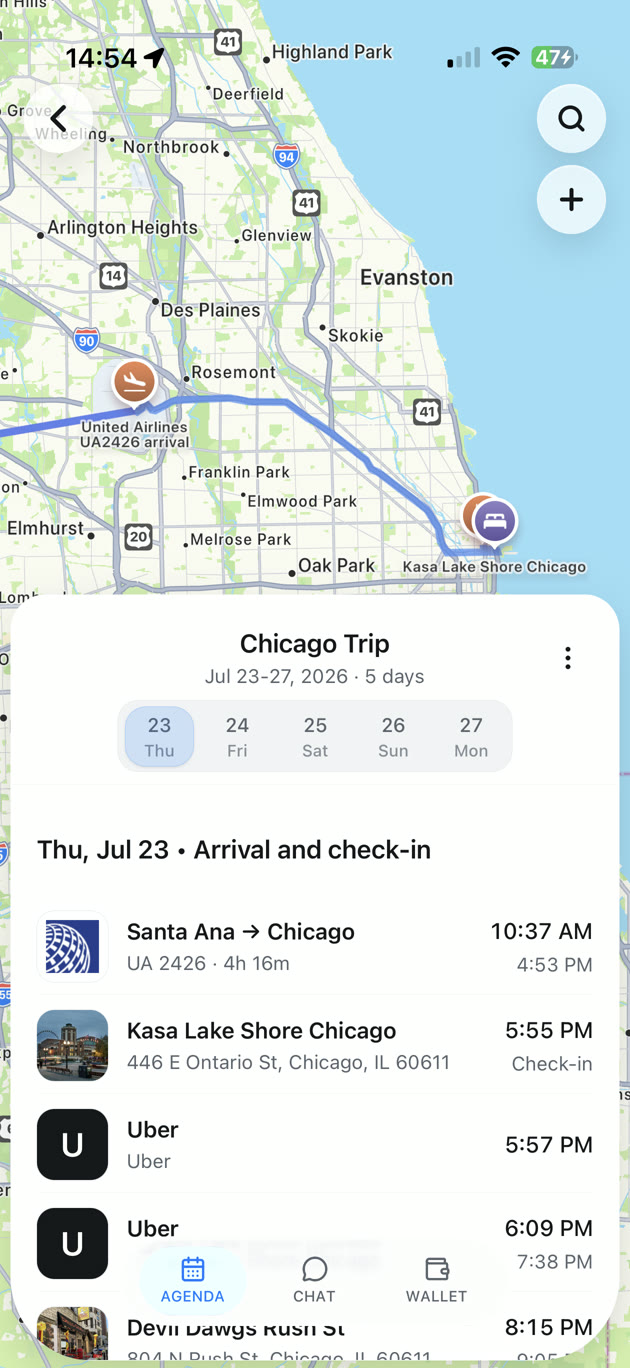
See which flight details to check and how to read local flight times before you set the day order.
Choose the method that fits your email
Start with the source you can check and keep the provider confirmation close by.
| Method | Useful for | What to do next |
|---|---|---|
| Connect Gmail to TripNoted Free | Importing recognized bookings from one mailbox into trips and agenda items. | The first import covers six months; later checks run every 60 minutes. |
| Forward one booking email | Sending a selected message to a private TripNoted address, when it is shown in your account. | A forwarded message still needs to be recognized. Check the result against its source. |
| Add a plan by hand | Entering a booking you want to control or a detail the email flow did not add. | Use the provider’s latest record for current times, terms, and booking status. |
Common questions
Which booking emails can TripNoted organize?
TripNoted organizes recognized flight, hotel, train, car rental, restaurant, activity, cruise, and other travel booking emails. Open the resulting trip to check the details and add anything else you want in the plan.
Can I use TripNoted without connecting Gmail?
Yes. Gmail is optional. If your account shows a private forwarding address, you can send a booking message to it. You can also create a trip and add plans by hand.
Should I keep the original booking email?
Yes. Keep it or the provider’s current booking page for confirmation codes, tickets, cancellation terms, and the latest status.