How to Organize Travel Documents Before Your Trip
By TripNoted · Updated October 28, 2026
Put the files for one trip in a clearly named folder, sort them by travel date, and keep a short index that tells you where to open each item. Download the files you will need along the way. Keep private identity documents separate from bookings you share. With that small system in place, you can find a hotel confirmation or train ticket without searching your whole inbox.

Give each document a clear home
- Create one folder for the trip. Use a name you can recognize on your phone, such as
2027-04 City Break. Start with the file app or cloud drive you already use. A short trip may need only one bookings folder. For a longer journey, separate transport, stays, and activities so you can browse without opening every file. - Collect the latest files. Open each booking email and save the ticket, voucher, or confirmation supplied by the provider. Keep a hotel confirmation distinct from a boarding pass: they do different jobs. If an email is missing, use our confirmation-email search steps before you make a duplicate booking.
- Name files by date and purpose. A name such as
2027-04-12 Hotel arrival.pdfis easier to find thandownload (4).pdf. Add the destination or provider when it helps distinguish two files. Keep passport numbers, payment details, and other private identifiers out of file names that may appear in previews or shared lists. - Make a small document index. List what the file is, where to open it, whether you have checked it offline, and who needs access. A note or simple table is enough. Use the exact file name when there is no convenient link. The index should point you to the document, rather than become another copy of every detail.
- Separate current and old versions. Keep the current ticket or confirmation easy to identify. Move a replaced copy into an
Old versionssubfolder and update the index. Keep cancellation evidence if you may need it later. Our booking-change guide helps you check the other plans affected by a new time or date.
A document index you can adapt
This is an illustrative index for a fictional trip. Replace the file names and storage choices with your own. Mark an offline check as done only after you open the file without a connection.
| Document | Where to find it | Offline check | Who needs it? |
|---|---|---|---|
| Hotel confirmation | Bookings / 2027-04-12 Hotel arrival.pdf | Open the downloaded PDF. | Travelers sharing that stay. |
| Train ticket | Operator app; downloaded ticket if supplied. | Open the operator’s supported ticket format. | The named traveler. |
| Activity voucher | Activities / 2027-04-14 Museum.pdf | Open every page and check the date. | The people on that booking. |
| Private identity copy | Separate private storage; outside the shared trip folder. | Check access if you choose to keep a phone copy. | The document owner. |
| Trip agenda | Your saved TripNoted trip. | Open the saved plans on iPhone. | Invited trip guests. |
Keep the originals and any required boarding documents ready for their own checks. Your index is a way to find them quickly. For a hotel booking, our confirmation-details guide explains which names, dates, and references to review.
Keep the travel day together in TripNoted Free
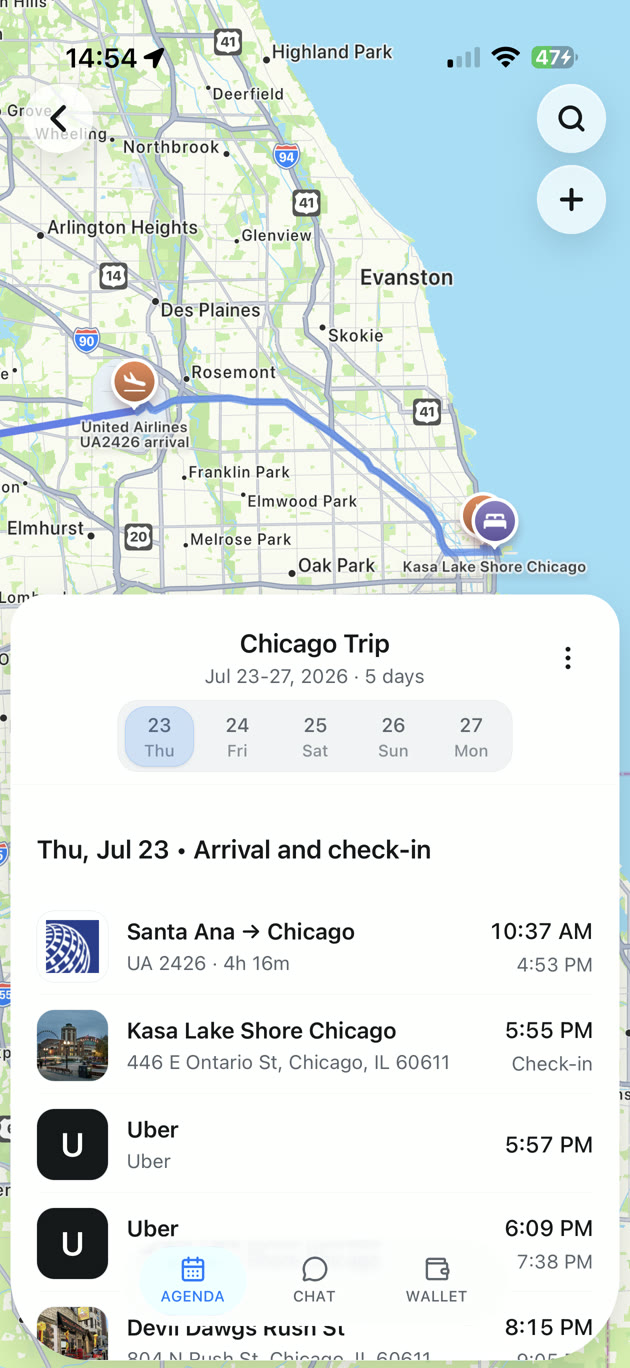
A file folder gives each document a home. TripNoted Free puts the plans in travel order, so you can see the flight, hotel, transfer, and activity together. Connect Gmail to organize recognized travel bookings, or add your plans manually.
Add a short note to a plan with the useful details you need next. For example, record the hotel’s key-collection instructions and the name of the confirmation file in your separate trip folder. Keep private identity copies in your private storage. You can share the trip with view or edit access while choosing separately who can open each document.
Manual plans, trip sharing, and offline access to saved trip details on iPhone are included in Free. Open the trip while online before you leave. Your document downloads remain a separate check: a saved agenda does not download files from another app. Use our offline itinerary guide to prepare the trip itself.

Download the files you need on your phone
On iPhone with Files
Open Files, tap Browse, and find your trip folder. On My iPhone holds local files; iCloud Drive can sync files across devices on the same Apple Account. For an iCloud Drive file you want to keep on the phone, touch and hold it, then choose Keep Downloaded. Apple’s iCloud Drive guide explains the option. If it is absent, Apple says the file is already on your iPhone.
With Google Drive
In the Drive app on iPhone, tap More beside a file, then turn on Available offline. Find saved items under Menu → Offline. Google describes this as saving a preview; check that the file opens with all the pages you need. See Google’s offline file instructions for supported file types and devices.
Before departure, switch on airplane mode, turn Wi-Fi off, and open each essential file. Zoom in to read the details. Try the ticket in the operator’s supported app or format too. If something is missing, reconnect, download it again, and repeat the check.
Share useful bookings and keep private files separate
Share the hotel or group voucher with the people who need it. Keep identity copies and personal records out of a general trip folder. A shared folder can give access to more than the one file you meant to send.
In Google Drive, review the file’s Share settings and General access. Restricted limits access to people granted permission; Anyone with the link lets anyone with that link open it. Use named recipients and the access level they need. Google’s file-sharing guide describes the settings. Check the recipient can open the booking before you split up.
Choose where each part belongs
| Place | Useful for | Check before travel |
|---|---|---|
| Phone file folder | Downloaded PDFs and confirmations. | Every required file opens offline. |
| Cloud drive | A backup and selected file sharing. | Download state and who has access. |
| Operator app or wallet | Tickets and passes supported by the issuer. | The current ticket is available in the accepted format. |
| TripNoted Free | Plans, dates, locations, and notes in one trip agenda. | Saved trip details and separate document downloads. |
Common questions
Should I keep everything in my email?
Keep the source emails, but download the files you expect to need on the move. A clear trip folder and index save you from repeating the same inbox search at every stop.
What if a file will not open offline?
Reconnect and check its download state. Open the whole file once, then test again without a connection. A bookmark or web link can still need internet access. For a ticket, check the issuer’s download or wallet options.
What should I do after a booking changes?
Get the latest confirmation or ticket, replace the current copy, and update the index and trip plan. Check any shared copies too, so a travel companion does not rely on an old arrival time.