How to Organize Work Travel Without Mixing Private Details
By TripNoted · Updated November 10, 2026
A work trip often means several records to check. These include the ticket, hotel, venue, and latest change. Keep the provider’s current confirmation as the source. Put only the travel details you need in your own itinerary. Send a short team update only when someone needs it. A personal trip planner can help you order the day, but it does not replace a system your employer requires.

A practical checklist for a work trip
- Check where the official record must live. Before you enter work details in a personal app, connect a work mailbox, or share a booking, check the instructions that apply to your trip. Use your employer’s required booking or expense system when one is named.
- Keep source confirmations easy to open. Use the airline, rail operator, hotel, and event organizer’s latest records for current times, ticket conditions, addresses, and booking references. A note in your itinerary is a quick guide. It is not a replacement for the provider’s record.
- Put travel logistics in order. Record the arrival time, the transfer or train, the hotel check-in, and the venue. Add enough address and timing detail to reach the next stop. Leave unrelated personal information out of the work notes.
- Give changes one clear place in your own plan. When a train, venue, or check-in time changes, compare the update with its source, change the matching itinerary item, and check any later step that depends on it. Keep the old time only when you need it to understand the change.
- Share the next action, not the whole record. If a colleague needs to meet you, send the updated meeting point or arrival window through an approved channel. Do not copy ticket numbers, private plans, or unrelated booking details into a broad team message.
- Make a short final check. Confirm dates, local times, station or terminal, hotel address, check-in time, venue, and who needs each update. Keep any personal plans separate from the team message.
Work through a one-day conference example
Imagine a fictional conference in Sample City on May 13. You fly in that morning, take the airport train to the center, attend the event, then check in to a hotel. The airport train now arrives later than planned, the organizer moves the event from Hall A to Hall B, and the hotel changes check-in from 3 p.m. to 4 p.m.
Use each original source to update your own travel order. Then decide whether the team needs a brief update.
- Flight arrival at Sample City Airport. Check the latest airline confirmation or flight status. Put the arrival time and terminal in your itinerary, with time to reach the train. Share an arrival window if a colleague is meeting you.
- The airport train arrives later. Check the rail operator’s current timetable or service notice. Put the new train time, station, and arrival estimate in your itinerary. Share a revised meeting time or station if someone needs it.
- The conference moves from Hall A to Hall B. Check the latest event-organizer message. Put the new venue name and address or entrance in your itinerary. If relevant, share a short note such as “The event is now in Hall B. Meet there at 9:30.”
- Hotel check-in moves to 4 p.m. Check the latest hotel message or booking page. Put the correct check-in time and address in your itinerary. Share only the updated arrival estimate if the team needs it.
- You have a personal dinner plan. Keep the reservation and plan in your own record if that helps you. Leave it out of the team note unless it affects an agreed work plan.
The team may need to know that you will reach Hall B at 9:30. It probably does not need your hotel booking reference, room details, or dinner plan. Follow the channel and record rules for your employer. This example is a planning method, not a company policy.
Choose what belongs in each record
When a new detail arrives, ask which source confirms it, what you need to do, and who needs to know. The answers can point to different places.
| Record | Good fit | Keep out or check first |
|---|---|---|
| Approved booking or expense source | The record your employer tells you to use for bookings, receipts, or changes | Do not assume a personal planner replaces it |
| Your personal itinerary | Travel order, addresses, local times, and reminders that help you move between stops | Check before entering sensitive work or customer details in a personal service |
| Shared team note | A short status, updated meeting point, or arrival estimate the team needs | Unneeded booking references, private plans, and broad copies of full confirmations |
| Provider confirmation | The current ticket, reservation, or organizer update to verify a detail | Do not rely on an older screenshot when the provider has sent a change |
Keep your personal itinerary clear with TripNoted Free
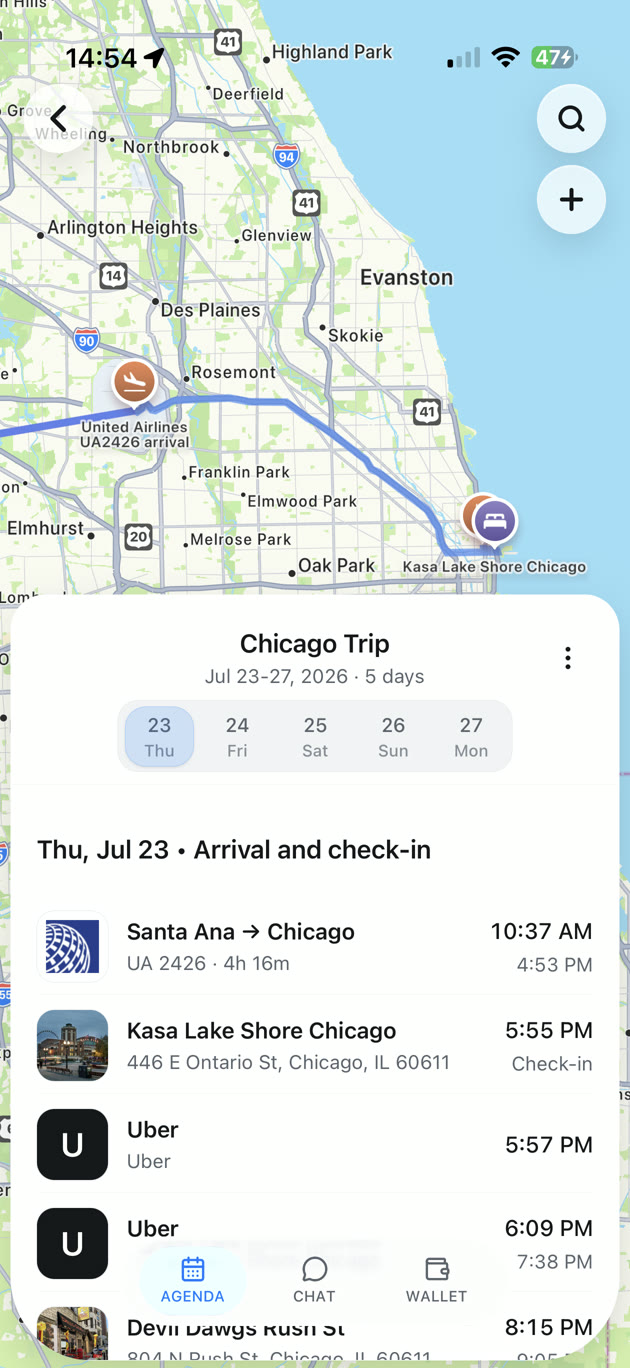
TripNoted Free supports manual trips and itinerary edits, so you can add travel plans without connecting Gmail. Use it as your personal view of the journey, with the flight, airport train, hotel, venue, and latest change in day order. Keep the provider confirmation for the official details, and use your employer’s required system for any company record.
If you share a trip, choose which trips to share and whether each guest can view or edit. Share only a trip whose contents are appropriate for those guests. TripNoted does not decide what your employer permits you to store or share.

Before connecting a work mailbox to any personal travel app, check your employer’s rules and review the service’s privacy information. See TripNoted’s Privacy Policy for its Gmail access and account controls.
Make a five-minute update after a change
- Open the newest notice. Confirm which booking or event it refers to, and check whether a newer update has arrived.
- Change the matching itinerary item. Update the time, address, or station. Keep the source link or confirmation available so you can check the full details.
- Check the next stop. A later train may change when you reach the hotel. A new venue may change the walk or transfer you planned.
- Send one concise team update. Include the new fact and the action people need, such as the revised meeting point. Leave unrelated details out.
- Review the next morning’s plan. Check that your itinerary and any approved work record show the same current time and location.
For more detail, see our guides to organizing train bookings, updating an itinerary after a booking change, and organizing travel documents.
Common questions
Should I use a personal trip planner for work travel?
Use one only for information you are allowed to keep there. Check your employer’s instructions first, especially before you connect a work mailbox or enter sensitive company or customer details. A personal itinerary can help you remember the travel order, but it may not be the required company record.
What should I put in a shared work-travel update?
Share the detail someone needs to act, such as an arrival window, a changed meeting point, or a new venue. Keep private plans and unnecessary booking details out of the message, and use a channel approved for the information.
Can I use TripNoted without connecting Gmail?
Yes. Gmail is optional. TripNoted Free supports manual trips and itinerary edits. Enter only information you are allowed to store in a personal travel service, and keep the provider confirmation for the current booking details.