How to Update Your Itinerary After a Booking Change
By TripNoted · Updated October 22, 2026
Your flight has moved, your hotel dates have changed, or a train now leaves later. Start with the latest confirmed booking, then check the plans that depend on it. Update the pickup, hotel night, onward journey, and shared itinerary in that order. A small change is much easier to handle when you can see what it affects.

1. Confirm what changed before you edit the plan
Open the booking on the airline, hotel, or ticket seller’s website or app. Compare it with the newest confirmation. Check the full date, local times, airports or stations, and booking reference. An email subject may mention a later departure while the details also show a different arrival airport.
For example, Delta puts schedule changes in My Trips and the Fly Delta app. Its schedule-change guidance explains where to review the new flight and when to contact the seller. Other airlines use their own booking tools.
If the replacement does not work for you, resolve that booking first. Keep any unconfirmed alternative out of the confirmed part of your itinerary. Once the provider confirms your choice, save that confirmation. Our flight confirmation guide helps you find the right booking reference.
2. Bring the current details into TripNoted Free
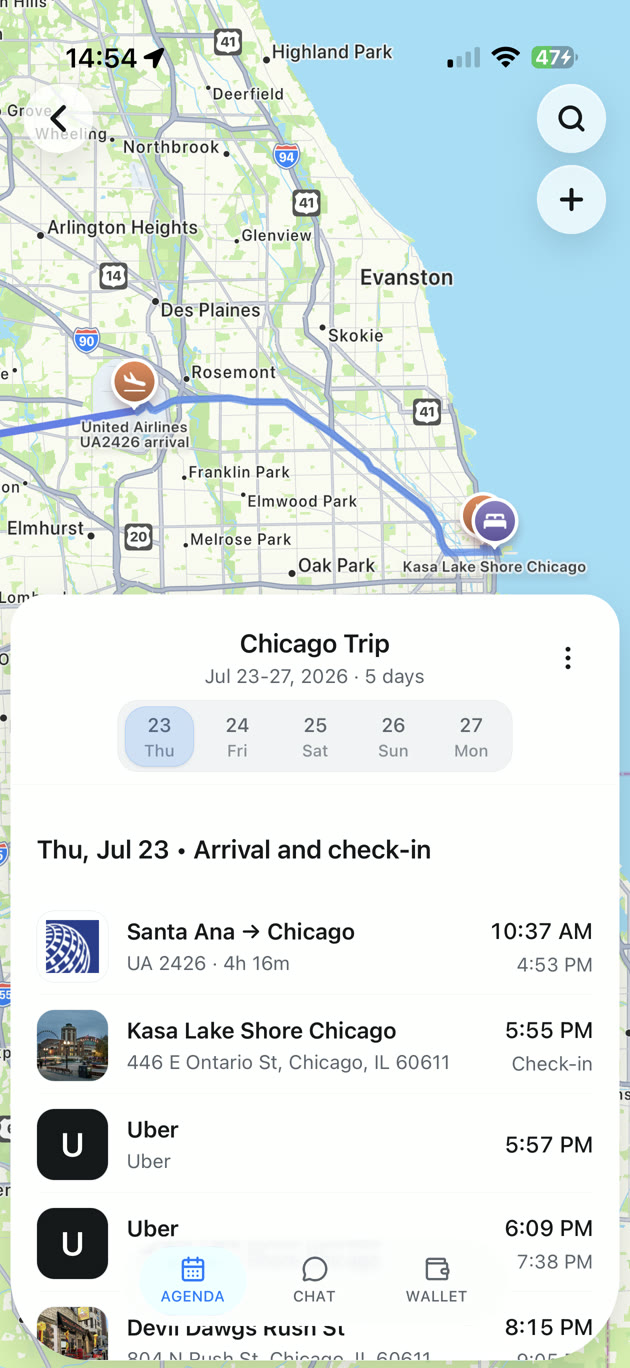
TripNoted keeps flights, stays, and other plans in one trip agenda. It can update your itinerary from recognized travel emails, so you can review a changed booking beside the plans around it.
- Bring in the new confirmation. Use connected Gmail, forward the booking email, or edit the plan manually. Gmail is optional.
- Compare the agenda with the provider. Check the date, times, location, and reference after the new details arrive. If a field still shows the old value, correct it from the latest confirmation.
- Review the surrounding plans. Open the same day and the next morning. Check the stay, transfer, train, and activities that now need attention.
Free includes manual itinerary edits, trip sharing with view or edit access, and saved itinerary access offline in the iPhone app. You can also opt in to free departure time-change and delay alerts for saved flights. An alert helps you notice a change; the airline’s booking remains the place to confirm it.

3. Follow the change through the rest of the trip
Work forward from the changed booking. A later arrival can affect several separate reservations, even if the airline has already updated its own ticket.
- Pickup or rental car: check the arrival airport, date, flight number, collection time, and opening hours. Ask the provider to confirm the new arrangement.
- Onward train or bus: check whether you can still reach the departure point. Include baggage collection, entry procedures, travel between terminals or stations, and boarding deadlines.
- Hotel: check the first booked night and expected arrival. A late arrival may need a check-in arrangement; arriving a day later may need a date change.
- Activities: check timed tickets, restaurant reservations, and the first morning’s plans. Keep flexible ideas separate from fixed bookings.
Contact each affected provider or the company that sold you the reservation. A change to one booking does not confirm a change to a separately booked service.
For a Booking.com stay, its booking help describes changes through the reservation or confirmation email, subject to the property’s policy. Contact the property in advance for late check-in. For a train, read that ticket’s conditions: Eurostar’s change rules, for example, vary by fare and distinguish a time or date change from a route change.
4. Use a before-and-after list to catch the missing pieces
Here is a fictional trip where a later flight affects an onward train and hotel. These times illustrate the sequence, not a recommended connection or pickup buffer. Every time below is local to the place concerned.
| Plan | Original | New plan or action | Status |
|---|---|---|---|
| Flight into City A | November 10, 11:30 arrival | November 10, 18:30 arrival | Confirmed by airline |
| Airport pickup | November 10, 12:30 | Ask for November 10, 19:30; confirm suitability with driver | Request pending |
| Train to City B | November 10, 14:00 | Ask to move to November 11, 09:45 | Exchange pending |
| Hotel in City B | Check in November 10 | Ask to move first night to November 11 | Property response pending |
| Night in City A | No stay planned | Arrange accommodation for November 10 | Not booked |
The useful discovery is the last row: moving the train creates a night without accommodation. Changing only the flight time would miss it. Keep each request marked as pending until you receive confirmation, then put the agreed details into the itinerary. Do not overwrite a confirmed reservation with a hoped-for replacement.
5. Replace the old copies people will actually use
Update the shared trip, calendar events, pickup message, and any saved ticket or itinerary copy. A corrected agenda does not remove an old screenshot from someone else’s phone.
Send a short, specific note: “The flight now arrives November 10 at 18:30 local time. Please check the trip for the current arrival details. The train and hotel changes are still pending.” When those are confirmed, send the final plan.
In a shared TripNoted trip, choose who needs view access and who needs edit access. Our itinerary sharing guide covers that choice. Ask anyone arranging a pickup to confirm the date and airport, not just the time.
If a date looks wrong, check the destination’s local clock and any next-day marker before editing it. The flight time-zone guide explains those details.
6. Make one final check before you travel
Read the itinerary from the first departure through the next overnight stay. Look for an impossible connection, two active versions of the same plan, a missing night, or a request still waiting for approval.
| What changed? | Where to confirm it | What to update afterward |
|---|---|---|
| Flight schedule or airport | Airline booking or ticket seller | Trip agenda, pickup, connections, calendar |
| Hotel date or arrival time | Property or booking service | Stay dates, check-in instructions, transfers |
| Train or bus departure | Operator or ticket seller | Current ticket, station transfer, next stay |
| Your own activity plan | Ticket provider if reserved; otherwise your shared plan | Time slot, meeting point, travel time |
Open the updated trip while connected before leaving. Check that the details you need are available on the phone you will carry. Our offline itinerary checklist covers that final step.
Questions about changed bookings
Does editing my itinerary change the actual booking?
No. Change the reservation with its provider or seller and get confirmation. Then update your itinerary to match. A note or calendar edit does not exchange a ticket or move a hotel night.
Should I delete the original confirmation?
Keep it for reference alongside the latest confirmed version. Make the current plan clear in your agenda, and keep old documents out of the copies you use for boarding, check-in, or pickup.
What if TripNoted still shows the old time?
Check that the new confirmation reached your connected mailbox or forwarding address. Compare the itinerary with the provider’s current booking and correct the supported fields manually when needed. For a departure that is close, check directly with the airline rather than waiting for an import or alert.