How to Save Places From Instagram for Your Next Trip
By TripNoted · Updated October 30, 2026
You saved the café, the quiet beach, and the tiny hotel. Now your trip is getting closer, and they are scattered across Instagram posts. To make those saves useful, keep the post link with the place name and city. Then put the places you choose into your trip plan. You can do this by hand with a map list, or share a supported link to TripNoted Free and review the places it finds.

Start with the places you want to visit
You do not need to sort every post you have ever saved. Open the handful that match your next destination. On Instagram for iPhone, open your profile, open the menu, then choose Saved. An Instagram collection can keep the original posts together. A place list makes the next job easier: finding out where they are and whether they fit the trip.
- Find the name, not just the view. Read the caption, look for a location tag, and check any names shown in the post. A city tag may cover a whole area. For a restaurant or hotel, get the actual business name.
- Match it to the right place. Search the name and city in your map app. Compare the address and photos. If a café has several branches, choose the branch shown in the post.
- Save it to a destination list. In Google Maps on iPhone, open the place, tap its name or address, then tap Save and choose a list. Use a name such as “Lisbon ideas” rather than mixing every country into one list.
- Keep the reason and the source. Copy the Instagram post link and keep it in a note with the place. Add a short reason: “terrace for lunch,” “rainy-day option,” or “book ahead.” This helps you choose later.
- Check before you schedule it. Visit the business or attraction’s own site for current hours, booking rules, and the address. A saved post can still be inspiring after its practical details have changed.
For the next stage, our Google Maps trip-planning guide shows how to group places by area. A short list near your hotel is easier to use than a long list spread across the city.
Save the link with TripNoted Free
TripNoted brings saved travel links and booked travel into the same organizer. Share or paste a supported Instagram link, then review the places it finds in Ideas. You can find Ideas by country and city, open their details, and add the ones you choose to a trip.
- Open one post or Reel. Use its sharing options to copy the link. On iPhone, you can also use the system share sheet to send a supported link to TripNoted.
- Add the link. Paste it through TripNoted’s Add a link flow, or choose TripNoted in the iPhone share sheet. Send one link at a time.
- Review My Links. Let processing finish, then check the source and any places found. A “sent” message means the link was accepted; look at the result before you plan around it.
- Choose an Idea for your trip. Check its city and place details. Add it to the trip when you know where it fits. Keep the other Ideas for another day.
Add a link, My Links, Ideas, and manual trip planning are included in Free. Gmail is optional. You can start with saved places, then bring your bookings into the plan.

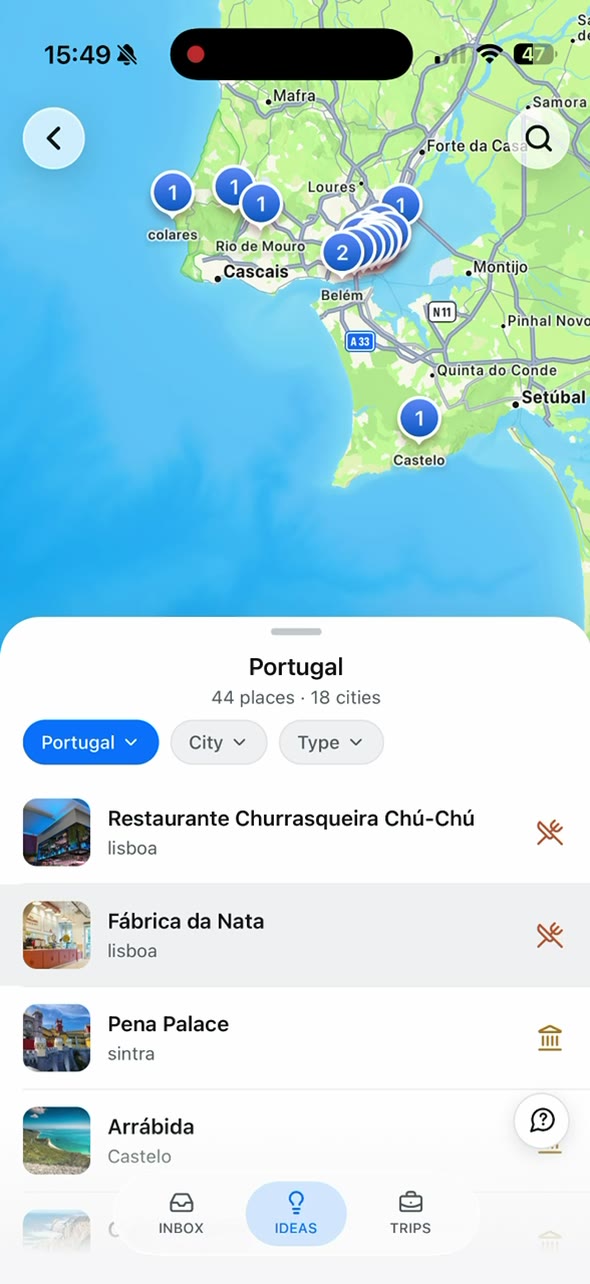
Turn a saved Reel into a plan you can use
Imagine a Reel that recommends a café and a viewpoint for a weekend away. You like both, but only one place is named clearly. Give each idea its own next step instead of treating the whole video as an itinerary.
| What the post gives you | What to keep | Next step |
|---|---|---|
| A named café in your destination | The correct branch, address, post link, and why you saved it. | Check hours. Keep it as a lunch option near another stop. |
| A viewpoint with no clear name | The post link and a note that the location still needs checking. | Look for the name in the caption or ask the creator. Add a place after you confirm it. |
| Several places found from one link | Each place that matches your destination and interests. | Choose a small set. Leave the rest as Ideas rather than filling every hour. |
When you have several good options, group nearby places into the same part of a day. Put fixed bookings in first, then add a meal, a walk, or one optional stop nearby. Keep a spare option for rain or a change of mood. If the trip has several cities, set your city order and nights before you assign the saved places to dates.
When a saved link needs another step
The link gives no places
Open the original post and find the name in its caption, location tag, or on-screen text. Search for the place yourself and create an Idea with the details you confirm. A link can be saved without producing a usable place. For private, removed, or unavailable posts, use your own confirmed place details rather than relying on access to the post.
The place is in the wrong city
Check the exact business and branch. A familiar name or similar photo is not enough. Compare the street address with the business’s own site before you add it to the trip.
TripNoted is missing from the iPhone share sheet
Look under More in the row of share apps, then tap Edit. If TripNoted appears, turn it on or add it to your favorites. You can also copy the post link and use Add a link in TripNoted.
You have hundreds of saved posts
Start with one destination and one link at a time. Select the posts you still care about, confirm their places, and stop when you have enough options for the days available. This workflow does not need access to your whole saved Instagram collection.
Choose where to keep your travel saves
| Option | Good for | Your next step |
|---|---|---|
| Instagram collection | Keeping the original posts together by destination. | Identify the places and check which ones fit your trip. |
| Google Maps list | Saving confirmed places and seeing where they are. | Search and save each place. Keep the original post link in your notes. |
| Notes or a document | A short list of names, links, and reasons to visit. | Check addresses on a map and put chosen stops into your itinerary. |
| TripNoted Free | Turning supported links into Ideas and choosing places for a trip with your bookings. | Review each link result and the place details, then add your chosen Ideas to the trip. |
Planning with someone else? Share the trip and choose who can edit once you have a plan to discuss. Before departure, prepare your itinerary for offline use. A saved online video and a downloaded trip detail serve different jobs.
Common questions
Can I paste an Instagram Reel into Google Maps?
Google’s documented save-place method starts with a place on the map. Find the business or attraction from the Reel, open its map listing, then save it to a list. Keep the Reel link separately so you can return to the recommendation.
Do I have to connect Gmail to save travel links in TripNoted?
No. You can add supported links, use Ideas, and create trips manually without connecting Gmail.
Does saving a place book it?
No. An Idea or saved map place is an option for your trip. Make any required reservation with the business or ticket provider, then keep the confirmation with your itinerary.