How to Keep Your Travel Itinerary Available Offline
By TripNoted · Updated October 19, 2026
Save your itinerary on your phone before you leave, download the maps you need, and open the essentials once with Wi-Fi and mobile data turned off. That small check makes arrival much easier: your hotel address, booking reference, and next plan are ready when the connection is not.

Start with the details you will need on arrival
You do not need to save every travel tab. Start with the next few things you must do: get off the plane, reach your stay, check in, and find your first meeting point.
- Travel: flight or train number, date, local departure and arrival times, and booking reference.
- Your stay: property name, full address, confirmation number, check-in time, and arrival instructions.
- Getting there: pickup point, transfer details, and the area between the airport or station and your stay.
- Booked activities: meeting point, start time, and the ticket or entry method the seller requires.
- Contacts: your accommodation and travel companions’ phone numbers, where you can read them offline.
Keep the latest confirmed details. If your flight changed, update the plan before saving a backup. Our guides to flight confirmation numbers and hotel confirmation details explain which information to check.
Keep your itinerary together with TripNoted Free
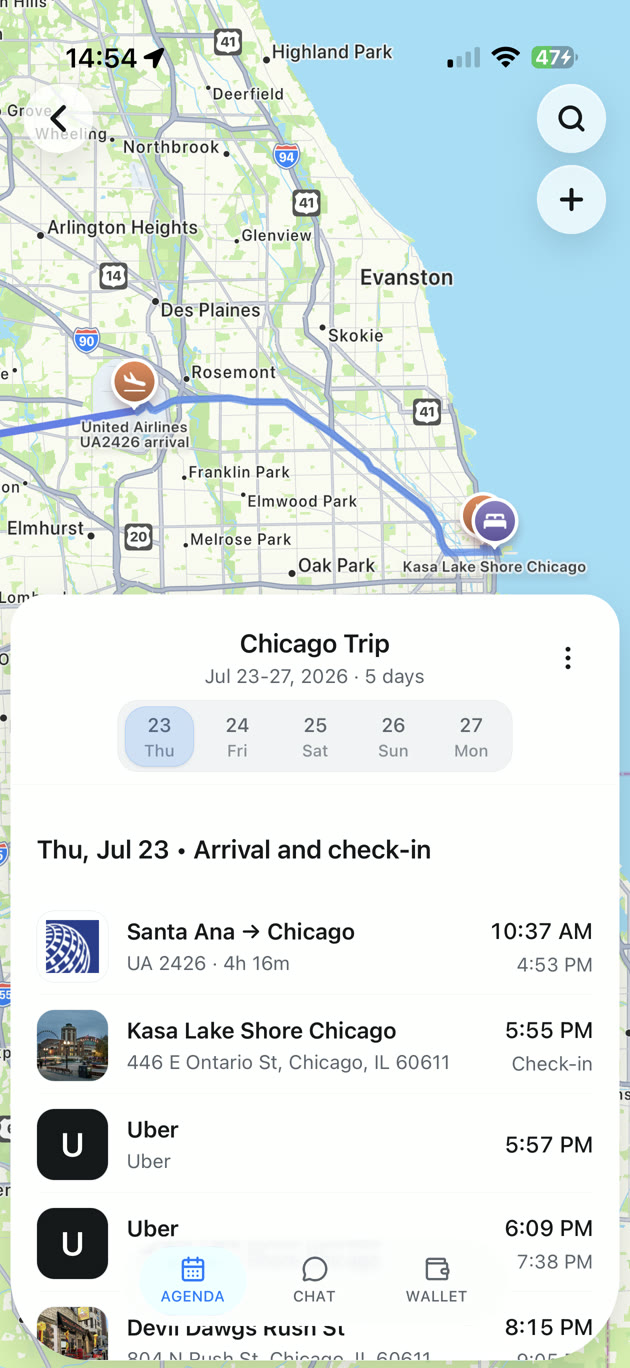
TripNoted brings recognized bookings and your own plans into one trip. The iPhone app is offline-first, and offline access is included in Free. Downloaded trip details stay available when you lose signal, so you can check your agenda without searching several inboxes.
- Bring your bookings into the trip. Connect Gmail for recognized travel email, forward a confirmation, or add the plan manually. Gmail is optional.
- Open TripNoted on your iPhone while connected. In Trips, open your upcoming trip and its Agenda. Give the trip details time to load.
- Check the important items. Open your flight, stay, and first activity. Confirm that the dates, times, address, and reference are there.
- Try the offline check below. Open those same details with both Wi-Fi and mobile data off. Keep the app signed in and its downloaded data on the phone.
You can also create trips, add manual itinerary items, and make supported edits offline. Those changes can sync when you reconnect. New booking imports, fresh flight information, maps, and messages still need the relevant connection.

Use the web app to get started. For offline access on the move, prepare the trip in the iPhone app before departure.
Download a map separately
An itinerary tells you where to be. A downloaded map helps you get there. Prepare both, especially when you will arrive before you have local mobile data.
Google Maps on iPhone
Open Google Maps while connected. Tap your profile picture or initial, then Offline maps → Select your own map. Adjust the area and tap Download. Include your arrival airport or station, your stay, and the whole route between them.
Downloaded Google Maps areas support offline driving navigation. Walking, cycling, and transit directions need a connection, as do live traffic and alternate driving routes. Downloads are unavailable in some regions. See Google’s offline map instructions.
Apple Maps on iPhone
In Apple Maps on iOS 17 or later, search for your destination and open the place. Tap Download, or More → Download Map, adjust the area, and download it. Supported areas include offline directions for driving, walking, cycling, and transit.
Apple’s offline maps are available in selected areas and do not sync across devices. Download them on the phone you will take. Follow Apple’s offline map guide for your version of Maps. For saving places and arranging stops, see our Google Maps trip-planning guide.
Keep tickets and a small backup on your phone
Save any ticket or voucher the provider gives you using its supported download or wallet option. Open it before leaving. If it is a PDF, make sure the file itself is downloaded; a link to a cloud file may still need internet.
A screenshot is handy for a hotel address or meeting point. It is not always a substitute for a ticket. Some providers use changing codes or require their app, so follow the instructions on that booking. A booking confirmation number is also different from a boarding pass.
Keep one short arrival note as a backup: the address, arrival instructions, reference, and a contact number. This is useful if an app needs you to sign in again. Paper can help when your phone battery runs out. If you travel with someone, ask them to save their own copy before departure.
Do this airplane-mode check before you go
Check the phone you will actually carry. A page that opened on your laptop does not prove it is saved on your phone.
- Finish downloads while connected. Open the trip, map, and provider tickets. Check the latest booking changes.
- Turn on airplane mode, then check Wi-Fi is off too. Wi-Fi can stay on in airplane mode. For this check, both Wi-Fi and mobile data must be off.
- Open the essential details again. Find your stay’s address and reference, the next travel time, and the first meeting point. Open the actual ticket file, not just its email or filename.
- Check the downloaded map. Make sure it includes the area you need. Try a route that your map app supports offline.
- Reconnect and fix anything missing. Download it, reopen it, then repeat that part of the check.
For example, imagine you land at 8 p.m. and need to reach a hotel with late check-in. Your check is simple: can you read the hotel’s address and arrival instructions, find the booking reference, and view the area around the station? Keep those details ready before adding more sightseeing ideas.
What should work without a connection?
Use this table when you prepare your phone. Saved information stays useful; live changes need a connection.
| What you need | Prepare before leaving | What still needs a connection |
|---|---|---|
| TripNoted itinerary on iPhone | Load the trip and check its downloaded agenda and booking details. | New imports, fresh provider information, and syncing changes to other devices. |
| TripNoted manual plans and supported edits | Keep the trip’s local data available. | Sending queued changes to the service and sharing them with others. |
| Google Maps | Download an area covering the entire driving route. | Walking, cycling and transit directions; traffic and alternate routes. |
| Apple Maps | Download a supported area on the iPhone you will carry. | Fresh information beyond the downloaded map. |
| Tickets and vouchers | Use the provider’s supported offline or wallet option; open the saved file. | Ticket updates, transfers, or checks the provider requires online. |
| Email and cloud links | Download the needed attachment or save essential details separately. | An original message or file that has not been downloaded. |
If something is missing offline
The trip opens, but one item is missing: reconnect, open that item, and let its details load. Check again offline. Do not sign out or clear downloaded app data just before you travel.
The map opens, but directions do not: check that the whole route is within the downloaded area and that your map app supports that travel mode offline. A saved place alone is not a downloaded area.
A booking changed after you saved it: reconnect when you can and check the latest provider update. An offline copy shows saved information; it cannot receive a new delay or cancellation without a connection.
Offline itinerary questions
Can I use an offline itinerary app for free?
Yes. TripNoted Free includes downloaded trip details and supported offline edits in the iPhone app. Set up your trip while connected, then use the airplane-mode check to make sure the details you need are on that phone.
Will my travel companion see my offline edits immediately?
No. Changes need to sync after you reconnect. Agree on the next meeting point before you split up, and have each person save the details they need.
Can I receive live flight alerts offline?
You need a connection to receive fresh information. Check the airline and airport displays when you can. Your saved itinerary remains a useful reference between updates.
For the next trip, keep the source messages easy to find with our guide to organizing travel emails. Then give your phone one offline check before you leave.