How to Share a Travel Itinerary With Friends and Family
By TripNoted · Updated October 20, 2026
The easiest itinerary to share is one everyone can find again. Put the current plan in a shared trip or document, choose who can view or edit it, and send one clear message with the next meeting point. Before departure, ask someone to open it on their own phone.

Give people the details they will actually use
Start with the trip dates and the next few things everyone needs to do. A useful shared itinerary answers where, when, and how to get there.
- Travel days: flight or train numbers, departure and arrival dates, and local times.
- Your stay: accommodation name, address, check-in time, and arrival instructions the group needs.
- Daily plans: booked activities, meeting points, start times, and a little space between commitments.
- Getting together: who arrives separately, where you will meet, and who to contact if plans change.
- Open decisions: mark an idea as optional so nobody mistakes it for a confirmed reservation.
Check who needs the booking references and private arrival details. Your travel companions may need more information than a friend staying at home. Keep passport images, payment information, and private access instructions out of a widely shared summary.
If your bookings are still scattered, our guide to organizing travel emails helps you collect the right details first.
Share the trip with TripNoted Free
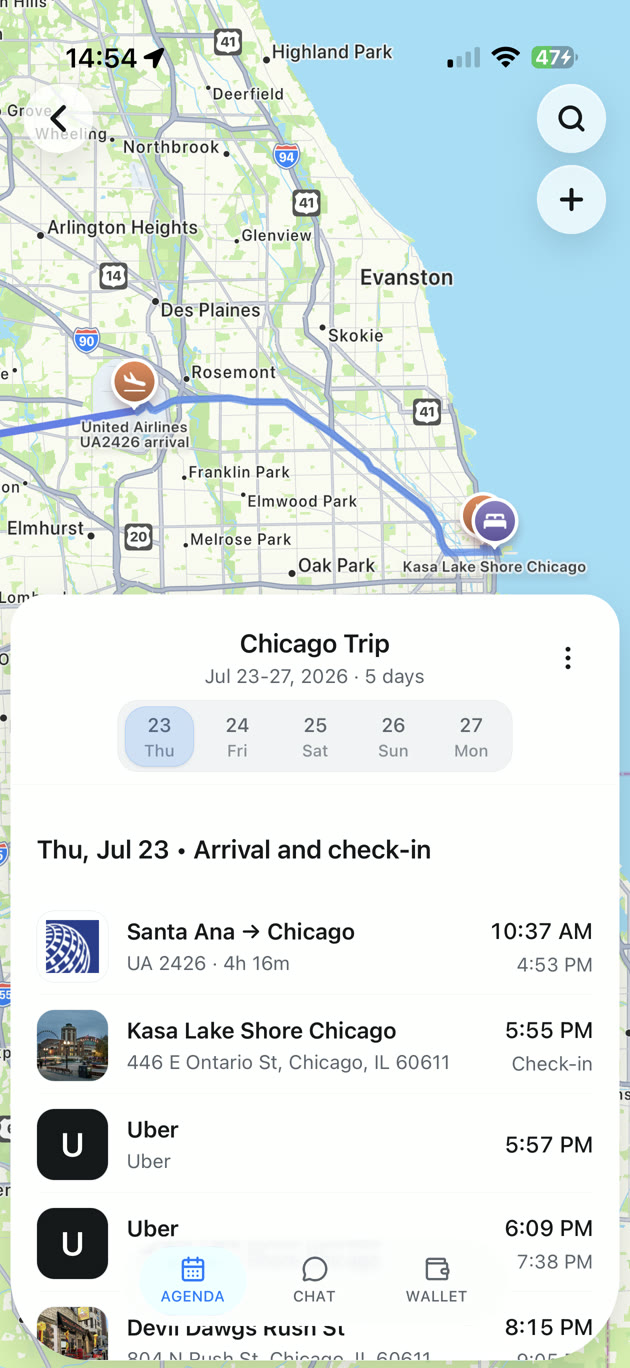
TripNoted keeps recognized bookings and your own plans in one agenda. Trip sharing is included in Free, with Can view or Can edit access. That gives the group a place to check the plan as you build it.
- Prepare the trip. Bring in recognized booking emails, forward a confirmation, or add plans manually. Open the agenda and check the dates, times, and addresses.
- Open sharing on iPhone. Open the trip’s menu and choose Share a Trip. On Trip sharing, find Links.
- Choose the right link. Use Can view link for someone following the itinerary, or Can edit link for a companion helping to build it. The sharing sheet shows the access details before you send.
- Review and send. Read the access summary and any expense setting. Tap Send invite to open your phone’s share menu, then send the link to your companion.
- Check access together. Ask them to open the link and find the first meeting point. An edit link asks the recipient to sign in and join before editing. Make this check before you leave.
A view link lets anyone holding it view the full itinerary; linked emails stay hidden. An edit link lets someone sign in and join, and includes costs and linked emails. Neither grants access to your Gmail mailbox. Send links only to people you intend to share with. You can manage people and disable links from the sharing controls.

Start on the web or download TripNoted for iPhone. Sharing does not require a paid plan.
Agree on who can change the plan
For a weekend with friends, imagine Sam organizes the trip, Lea books dinner, and Ravi arrives later. Sam keeps the main itinerary current. Lea gets edit access to add the restaurant and meeting time. Ravi gets view access so he can find the stay and join the group.
Now suppose dinner moves from 7 p.m. to 7:30 p.m. Lea updates the itinerary, then sends the group a short message: “Dinner is now 7:30. Same restaurant. The trip has the new time.” The itinerary holds the detail; the message draws attention to the change.
For family at home, a separate summary can contain the travel dates, accommodation contact, and when you expect to check in. Choose what they need to know rather than giving everyone the same level of detail.
Share a Google Doc when you want a simple written plan
A shared document works well for a short itinerary or a summary for someone who prefers a written page. It also gives you a place to explain arrangements that do not fit neatly into a booking.
- Write the plan in Google Docs. Put the trip name and dates at the top. Group each day’s travel, stay, and meeting points together.
- On a computer, click Share. Add the email addresses of the people you want to invite.
- Choose Viewer, Commenter, or Editor. Viewer suits someone reading the plan. Commenter lets them suggest changes without rewriting it. Editor lets them change the document.
- Review General access. Keep it Restricted when the plan should be available only to people you have granted access. Anyone with the link is a different choice: people can pass that link on.
- Send the invitation and check it. Ask a recipient to open the document with the account you invited. Put that same document link in your group chat so it is easy to find.
These are the computer steps. Follow Google’s sharing instructions for your device and account. Work or school accounts can have different sharing restrictions.
Give the document a clear name, such as “Lisbon weekend — current plan.” When a booking changes, update that page. A downloaded PDF or copied message remains a separate snapshot and will need a new copy.
Make the first message short and useful
Send the shared plan where the group already talks. Include the trip dates, how to open it, the first meeting point, and what you want each person to check. Pin the message if your chat app supports it.
For example: “Here is our Lisbon trip for May 14–17. Please open it and check your arrival day. Friday’s first meeting is at the hotel lobby at 6 p.m. Lea is adding dinner. Tell me if you cannot open the plan.”
A screenshot can help someone find a meeting point quickly. For a longer trip, keep the shared trip or document easy to reach so changes do not get buried under old images.
Check the recipient’s view before departure
- Access: can they open the link, and use the invited account if sign-in is required?
- Correct trip: are the dates and people right, with no unrelated trip shared by mistake?
- Correct role: can a reader view the plan, and can the intended planner edit it?
- Useful detail: can they find the arrival address and next meeting time without asking you?
- Offline preparation: have they saved what they need on the phone they will carry?
If a document will not open, check the invited email address, current access setting, and any work-account restriction. For a shared trip, check that you sent the right trip link and that it is still enabled. Avoid making private information public just to get past an access problem.
Changes need a connection to reach other people. Before leaving signal behind, reopen the current plan and keep an arrival backup. Our offline itinerary guide walks through the phone check.
Choose the sharing method for your trip
| Method | Best use | How to keep it current |
|---|---|---|
| TripNoted Free | Bookings and daily plans in a shared agenda, with view or edit access. | Keep the trip updated; reconnect so changes can reach companions. |
| Shared Google Doc | A flexible written itinerary or a smaller summary for family at home. | Edit the same document and keep its access settings correct. |
| PDF or printed copy | An arrival backup or a plan someone can read without the shared app. | Send or print a new copy after important changes. |
| Chat message or screenshot | A meeting reminder, quick update, or link to the current plan. | State what changed and point people back to the shared itinerary. |
Questions about sharing an itinerary
Can I share a travel itinerary for free?
Yes. TripNoted Free includes trip sharing with view or edit permission. You can also share a written plan through Google Docs. Choose the one that fits how your group will use the information.
Should everyone have edit access?
Give edit access to people who will maintain the plan. View access works well for companions who only need to follow it. Agree who owns each decision so two people do not book the same dinner or change the same plan.
Can I share just a summary with family at home?
Yes. Make a short separate document or message with the dates, places, contacts, and check-in arrangements they need. Choose the details that help them follow your journey. Keep private booking information with the people who need it.
If you are still choosing a tool for the group, compare the options in our group trip planning app guide. Then pick one shared plan and make sure everyone can use it.