How to Organize Travel Links So You Can Find Them Again
Updated November 11, 2026
To save travel links for later, record each original URL with the place name, city, reason you saved it, and next thing to check. Keep the web page separate from the real place it describes. Then you can return to the source for current hours, tickets, or directions, and use the place record to plan your day.
Organize travel links with a simple note or folder
Start with one destination folder in the notes app, document, or cloud drive you already use. A small list is enough for a weekend. If you prefer to see places on a map, keep a separate map list and put the original link in your note. Our Google Maps lists guide shows how to use place lists for a trip.
- Make one folder for the destination. Use a name you will remember, such as
Lisbon ideas. If your trip has several cities, give each city its own section. Do not sort every interesting link you have ever seen before you know where you plan to go. - Save the original page title and URL. Copy the link from the browser or post. Add the business, creator, or site name if the title is vague. Keep the URL itself. A screenshot or copied sentence may help you remember why you saved it, but it may not take you back to the source.
- Record the place as a separate item. Add the actual attraction, restaurant, hotel, or viewpoint and its city. If you do not know the name or location yet, write needs checking. Do not turn a broad city tag into a confirmed address.
- Add one reason and one next step. Keep the note short: “quiet lunch near the museum” and “check opening hours.” Separate what the page says from what you still need to confirm. This makes the list useful when you return to it weeks later.
- Check the source before you plan around it. Open the original page when you choose the place for a day. Check the provider’s own site for current hours, tickets, booking rules, and directions. Then add the place to your map or itinerary if it fits the trip.
Keep the source page and the place apart
A source is the web page, post, or video that gave you an idea. A place is the real location you may visit. One source can describe several places, or it may not name a place clearly. These records answer different questions: “Where did I see this?” and “Where is it?”
For example, use the real Oceanário de Lisboa Plan Your Visit page. Put its title and URL in the source field. Put “Oceanário de Lisboa, Parque das Nações, Lisbon” in the place field after you confirm the location. Add “check current tickets and visit details” as the next step. When you plan the visit, open that same source link again and review the official page.
| Record | What to save | How it helps later |
|---|---|---|
| Source | Oceanário de Lisboa: Plan Your Visit and its original URL | Return to the official page for current hours, ticket choices, and visitor details. |
| Place | Oceanário de Lisboa; Parque das Nações, Lisbon | Find the location on a map and decide how it fits the day. |
| Your note | “Check tickets and visit details before choosing a time.” | See the next action without treating an old note as current information. |
The page and location belong together, but they are not the same thing. Save both so you can find the place and return to the source that describes it.
Keep travel links and places together with TripNoted Free
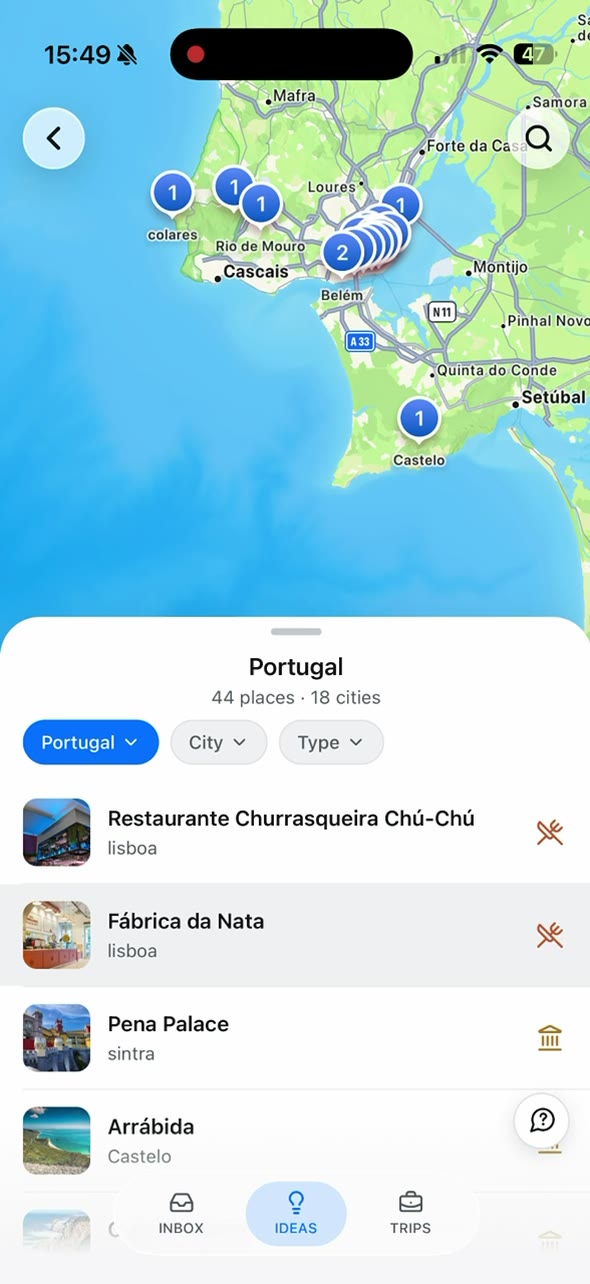
TripNoted Free includes Add a link, My Links, and Ideas. On iPhone, add one HTTP(S) link at a time or share one from the share sheet. After processing, open My Links to check the source record and any places found. Open the original source link when you need the page again. Review any places in Ideas, then add the ones that fit your trip. A source can produce no place, so keep its URL and look up a place by hand when needed. Link processing and opening the original website need an internet connection.

For a manual version of the same job, see how to save places from Instagram. When you are ready to choose stops for your days, use our guide to plan a trip from saved places.
Find a link when something goes wrong
The link opens a page that changed
Search for the exact page title or the place name on the provider’s official site. Check the domain and page details before you replace the old URL. If you find the current page, update the source record and keep a short note that it moved. Do not copy new hours or ticket details into an old note without checking the page again.
The page names several places, or none
Make one place entry for each location you may want to visit, and keep the same source URL with each entry. If there is no clear place name, save the source with a “needs checking” note. Search the business or attraction yourself and compare its exact name and city. It is fine to keep a useful page that does not give you a place.
The result points to the wrong branch or city
Check the street address and city on the official business page. A familiar name or similar photo may point to another branch. Keep the item unconfirmed until the details match the place you meant to save.
You cannot open the source without internet
A bookmark or saved URL needs a connection to load the web page. If you need a ticket or confirmation while offline, download it from the provider when available and test that file separately. A note can remind you where the page is; it does not make the page available offline.
For PDFs and other files, see our guide to organize travel documents before a trip. Store the link and any document you need in the right place for each item.
Choose a place to keep your travel links
| Method | Good for | What to remember |
|---|---|---|
| Note or trip folder | Keeping a URL, place, city, reason, and next step together. | Open the original source to check details that can change. |
| Browser bookmarks | Returning to a web page from the same browser account. | Add a clear title or folder; a bookmark does not identify a map place by itself. |
| Map list | Finding confirmed places and seeing where they are. | Save the place, then keep the original source link and reason in a separate note. |
| TripNoted Free | Reviewing supported travel links and their places beside your trip ideas. | Check each result; a link may give no place, and the source still needs internet. |
Common questions
What should I save with a travel link?
Keep the original URL, page or post title, confirmed place and city, why you saved it, and the next thing to check. If you do not know the place yet, mark it as unconfirmed.
Can one link give me more than one place?
Yes. A page or post may mention several places. Review each one and save only the locations that match your trip. Some links do not give a usable place at all.
Do I need to connect Gmail to organize links in TripNoted?
No. Add a link and Ideas are included in Free. Gmail is optional for this task.