Your 10-Minute Final Trip Checklist
By TripNoted · Updated November 5, 2026
A vacation planning checklist can get long. Your final check can be short: confirm each fixed booking with its provider, open the ticket or file you will need, then scan your saved places and day order. You will finish with a clear day plan, the right tickets ready to open, and a short list of anything that needs a follow-up.

Use three labels: Confirmed when the provider’s current record matches your trip; Needs confirmation when details are missing or conflict; and Optional for saved places you have not booked.
Follow this 10-minute final trip check
Use one itinerary, calendar, or note as your checklist. This is a final scan of a trip you have already planned. Open the latest provider records as you go. If you spot a missing booking or unreadable ticket, fix that first, then continue the check.
- 00:00–01:00 — Set the trip dates. Write the first and last travel dates. Use local dates and times for each city. Add the traveler name or booking name you need to find each record.
- 01:00–02:00 — List the fixed bookings. Add flights, trains, stays, transfers, and timed tickets. For each one, note the provider, date, local time, and airport, station, address, or entry point. Leave saved places off this list.
- 02:00–04:00 — Check the latest provider record. Open the airline, rail, hotel, event, or seller account. Compare its current trip or reservation with the latest message you have. Check the date, name, route or address, and booking status. If the provider record is missing or conflicts with a message, label it Needs confirmation and contact the seller or provider. Keep an old confirmation separate until the current source agrees.
- 04:00–06:00 — Open each required ticket or file. Use the entry method the carrier or seller accepts. If you saved a file, open it now and check that it is readable. Get the current pass or ticket in the format the provider accepts, then save it using that provider’s instructions. For example, American Airlines says to check mobile-pass acceptance at both departure and connection airports. Its page says most airports accept the pass, not all airports. For rail, Amtrak lists eTickets and train status in its app; gate and track details are available only at select stations.
- 06:00–07:00 — Open your saved source links. Check that each link still points to the place, branch, venue, or instructions you mean. A social post or map pin can help you find a place, but it is not a reservation. Read the provider’s current entry or arrival details for anything you have booked. If a saved place has several locations, confirm the exact one.
- 07:00–08:00 — Choose the optional stops. Keep a stop only if it fits around the fixed bookings and the travel time between them. Move it to another day or leave it saved for later when the timing is tight. Do not add a booking time to a place you have not reserved.
- 08:00–10:00 — Read each day in order. Trace arrival, transfer, check-in, timed entry, and the next departure. Look for overlap, a wrong local date, or a transfer with too little time. Keep a buffer for the route and the provider’s arrival instructions. If a change affects a later stay or transfer, recheck those bookings too. See how to update an itinerary after a booking change.
When a map is part of your arrival plan, check it separately. Google Maps says the full route must fit inside the downloaded area on iPhone. Its Android help page says the same. Offline walking, cycling, and transit directions are not available, and a downloaded area can expire.
Worked example: sort a fictional two-day trip
Here is an illustrative Friday-to-Saturday trip. The final check catches a wrong hotel night, a ticket that needs to be saved, and a dinner time that still needs confirmation.
| Item | What the traveler finds | Decision |
|---|---|---|
| Friday flight | The airline’s current trip record shows a confirmed flight for the same traveler, route, and date as the latest email. | Confirmed. Keep the flight in Friday’s plan. Open the accepted boarding-pass view when it is available. |
| Hotel stay | The hotel account shows Friday night with Saturday checkout. The traveler’s note incorrectly lists two nights. | Correct the plan. Keep Friday night and Saturday checkout. Check the hotel’s arrival and bag-drop instructions. |
| Timed gallery ticket | The seller’s current record shows a 13:30 ticket and provides a PDF. The traveler has saved only an older screenshot. | Save the current file. Download the provider-issued PDF and open it on the phone. Keep the 13:30 entry in the plan. |
| Dinner booking | An old email lists 18:30, but the restaurant’s current record is not available. | Needs confirmation. Keep the time out of the fixed schedule until the restaurant confirms it. |
| Saved bakery | A saved link names a branch near the hotel. It has no reservation. | Optional. Add it only if the Friday route has room; otherwise keep it saved. |
The day order is: arrive Friday morning, check the route and bag-drop option, attend the timed visit, then check in at the hotel. Dinner stays uncertain until confirmed. The bakery is a spare stop, not an appointment. On Saturday, check the train’s departure station and time before adding anything near the end of the day. The result is a corrected hotel night, a readable downloaded ticket, and two clear choices for the evening.
Keep the plan together with TripNoted Free
TripNoted Free brings your bookings, manual plans, saved links, and Ideas together so you can see the trip in one place. Connect Gmail to organize recognized booking emails automatically, or add trip details by hand. Gmail is optional. Review the daily agenda, check the original sources, and keep extra places in Ideas until you want to add them to the trip.

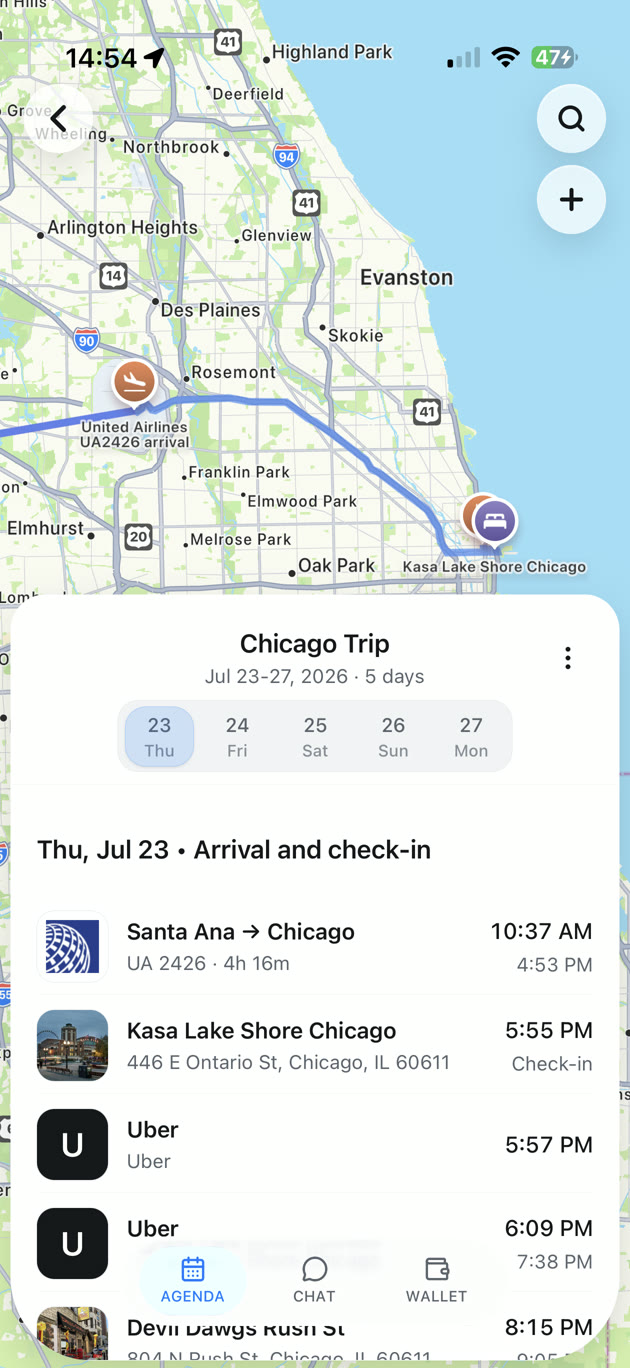
For a separate file checklist, see how to organize travel documents. If you need an offline plan, prepare your itinerary and maps before you lose connection.
Fix common gaps before you leave
- The email and provider disagree. Use the provider’s current record as the next check. Ask the seller to resolve a conflict, then review any connected stay or transfer. Read what a flight confirmation code tells you if you need to find the airline record.
- You cannot open a ticket. Start from the provider’s app or website while you have a connection. Follow its accepted entry method, or contact the seller. Save or reopen the current ticket using the provider’s instructions.
- The day looks too full. Keep the fixed ticket or booking in place. Move the least important saved stop to another day. Our guide to planning from saved places shows how to keep extra places optional.
Choose the right place for each detail
Use each tool for the question it can answer. A travel organizer can make the plan easier to scan, but the provider remains the source for its booking and ticket rules.
| Place to check | Useful for | Limit to remember |
|---|---|---|
| Airline, rail, hotel, or event provider | Current reservation details and the provider’s accepted ticket or pass. | Check each booking with the source that controls it. |
| Email and saved files | Finding reference numbers, receipts, and instructions. | An older message or cached copy may not show the current status or accepted entry method. |
| Map app | Checking whether an optional stop fits the day and preparing an offline area. | Offline route types and coverage vary. Check the app’s current limits. |
| TripNoted Free | Organizing recognized booking details, manual plans, links, and Ideas in one trip. | Keep boarding passes and entry tickets in the format their providers accept. |
Common questions
Does a saved place count as booked?
No. A saved link or Idea is a candidate. Mark it optional until you make and confirm a reservation.
Can I use a screenshot instead of the provider’s pass?
It depends on the provider. Follow the instructions for your ticket and check that you can open the accepted version.
Do I need Gmail to make this check in TripNoted?
No. TripNoted Free supports manual trips and itinerary plans. You can add a trip and saved places without connecting Gmail.