Best Travel Apps for Italy: Tickets, Maps, and Your Trip Plan
By TripNoted ·
For Italy, start with Google Maps for directions, Google Translate for signs and menus, and TripNoted for your bookings and daily plans. Add Trenitalia or Italo for the trains you plan to take. You can compare both operators before you book an intercity trip.

Before you fly, make sure you can find three things fast: the exact station on your ticket, the ticket the operator accepts, and your hotel address. You can download maps and languages in advance. Keep the steps for your first transfer handy, too, so you can open them after landing.
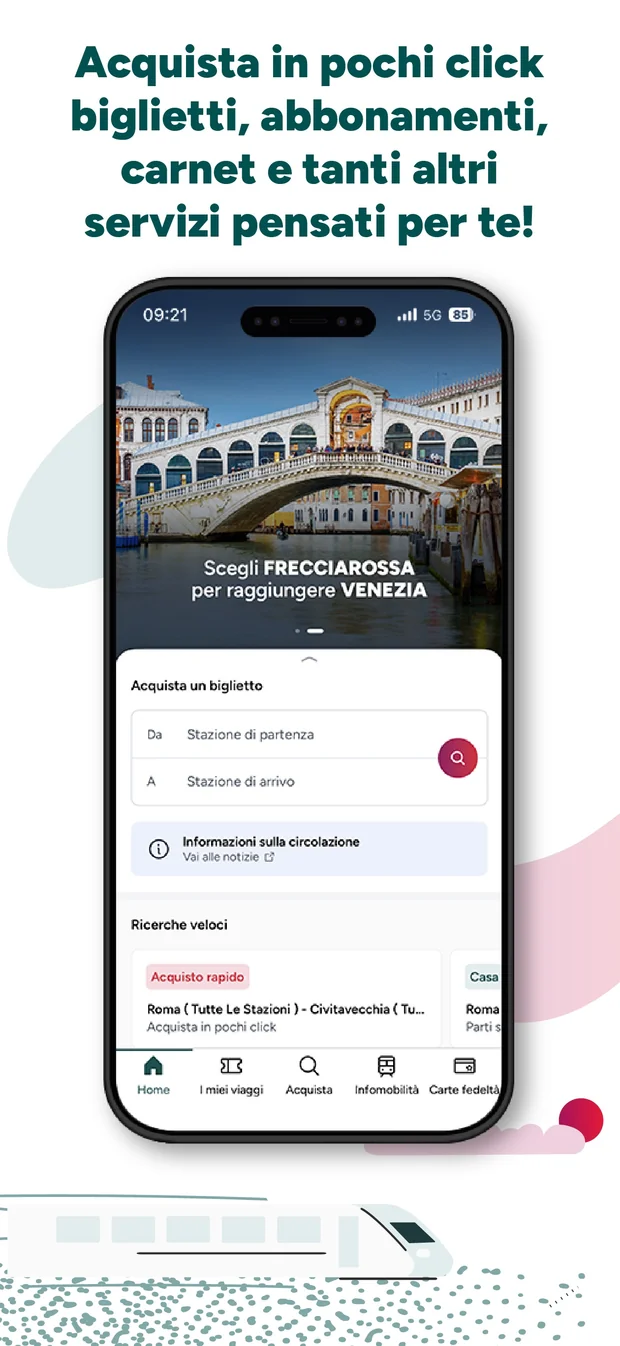
Buy and manage Trenitalia tickets
Use Trenitalia to search for and buy its Frecce, Intercity, and Regionale tickets. You can also check live train status. When a search shows several stations in one city, check the full station name for each leg. A departure from Roma Termini gives you a different starting point from Roma Tiburtina.
If you buy a Digital Regional Ticket, open the ticket in the app or from the link in your confirmation. It activates at the scheduled departure of the train you selected. Show the dynamic green bar during inspection. Have your ID ready if staff ask for it. A screenshot cannot show the changing bar. Read the Digital Regional Ticket instructions.
If your ticket says Electronic Regional Ticket, you can show the issued PDF with its ticket code on your phone or print it. If you have a single paper regional ticket, validate it before departure. Check which ticket you received before you decide what to save.
Book an Italo high-speed train
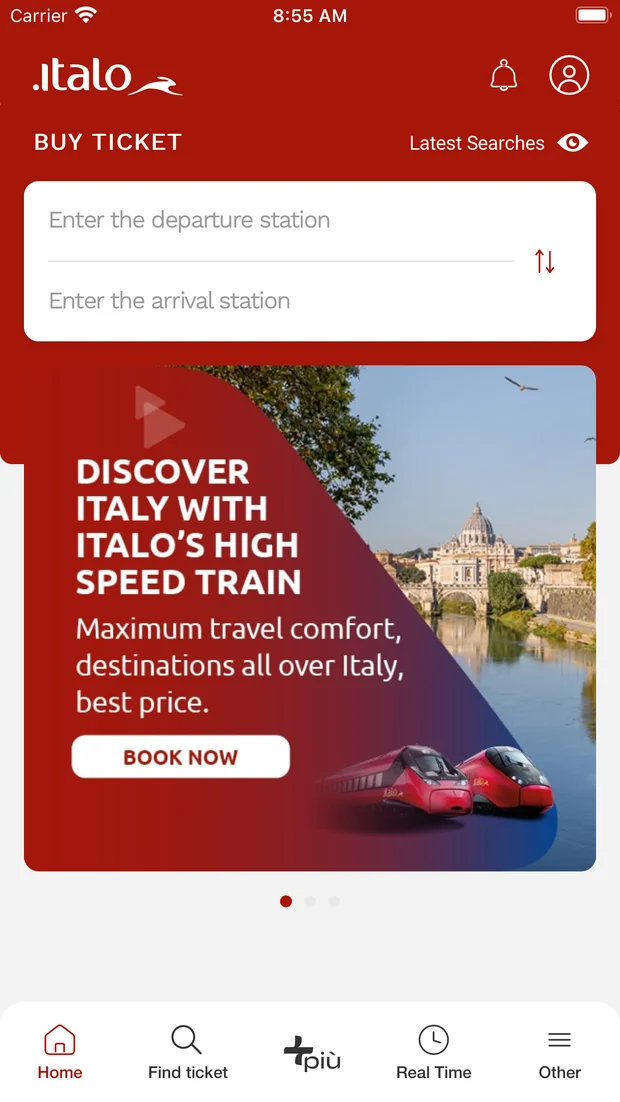
Use Italo’s app to compare fares on its trains, buy a ticket, manage the booking, and check live status. If both operators serve the journey you want, compare the stations and the rules for changing your ticket as well as the departure time and price.
Italo issues the ticket when you buy it. You can board without a separate check-in. Keep the ticket ready for a platform checkpoint or an on-board inspection. Italo accepts the issued digital or paper ticket, the trip details in its own app, or its confirmation SMS. Open the ticket while you have a connection. If you want a backup, keep the confirmation SMS if you received one, or print the issued ticket. See Italo’s ticket FAQ.
Once you book, copy the exact stations, departure time, and booking reference into your itinerary. Keep the operator’s ticket for boarding. See what else to keep in your train booking notes.
Save your places in Google Maps
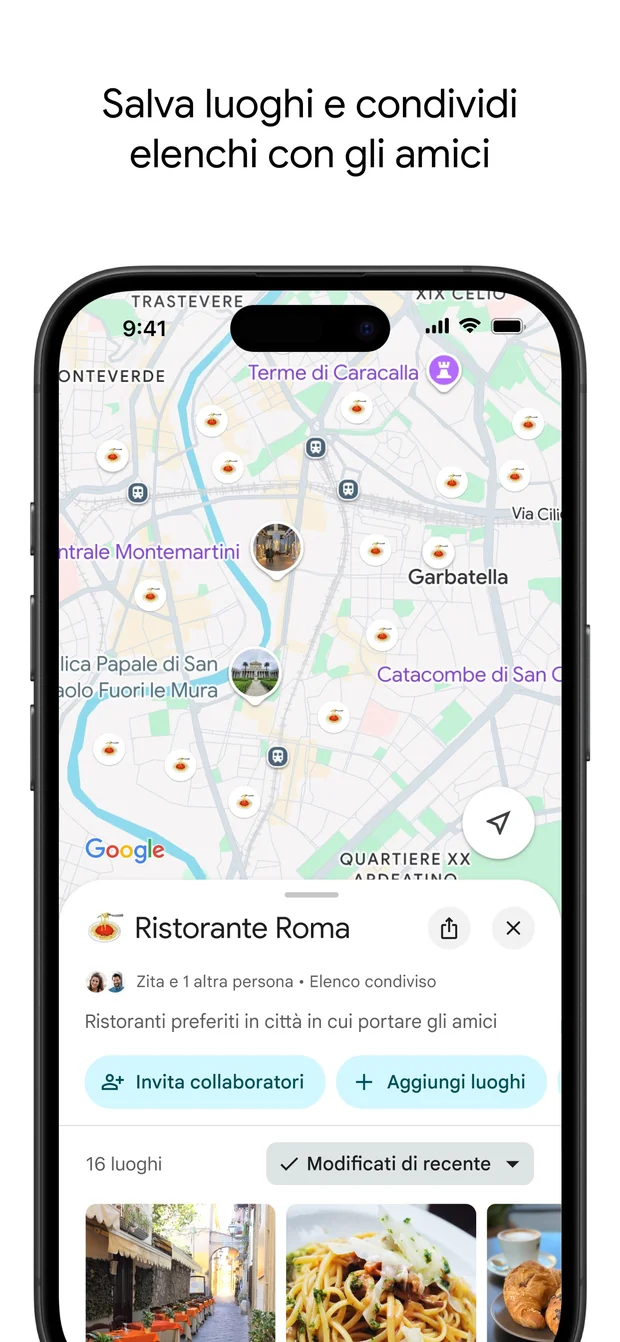
Save your hotel, the exact station on your ticket, and any place you need to reach soon after arrival. Check the hotel entrance and use your booking address if several listings have similar names.
- While connected, tap your profile picture and choose Offline maps → Select your own map.
- Adjust the area to include the station and your stay. Tap Download and check that the map appears in your offline maps.
- Look up the walking or transit directions while connected. Save the hotel address and the important route steps where you can open them offline.
A downloaded map gives you a street map and driving directions when the whole route fits inside the saved area. Walking, cycling, transit directions, and live traffic need a connection. If you travel with others, you can also share a list of saved places.
Download Italian in Google Translate
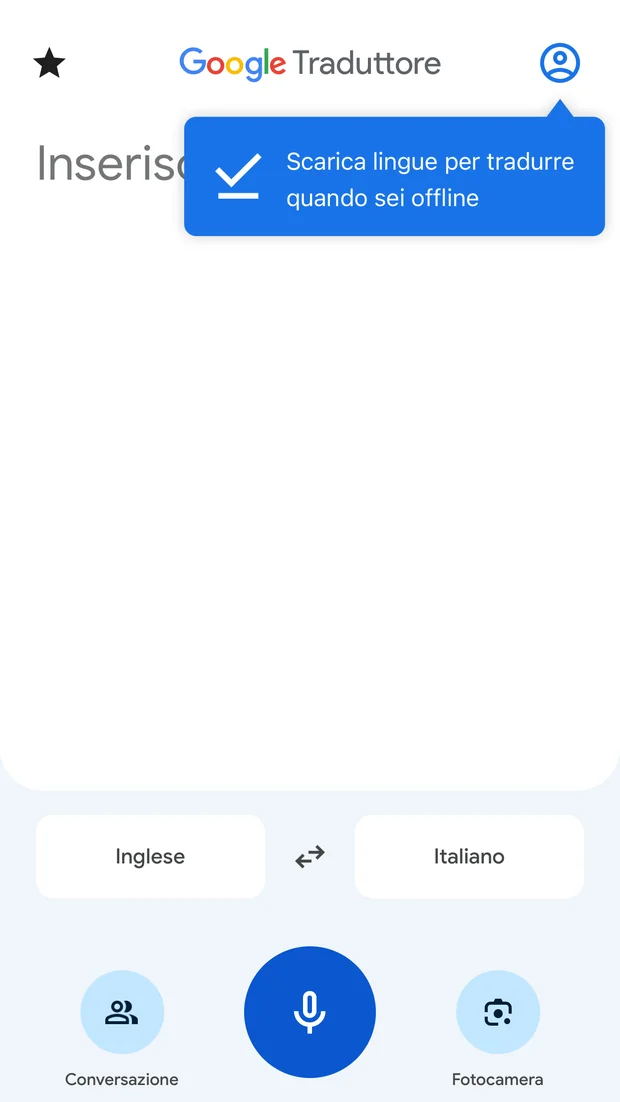
Use Google Translate to type a short question or point the camera at a sign or menu. On Wi-Fi, tap the language picker and use the download icon next to Italian and your own language. Check that both show as downloaded.
Try typing a short phrase with Wi-Fi and mobile data off. That gives you a fallback when you need to read a platform sign or ask where the station exit is. Camera and speech features vary by device and language. Try those modes ahead of time if you plan to use them offline.
See what comes next in TripNoted
Use TripNoted to put the flight, train, and hotel in the same day plan. After you add the train, you can see which station you arrive at and where you need to go next without looking through several emails. Create trips and add plans manually for free. You can also connect Gmail to import supported booking emails.
Share the trip with your companions and choose whether they can view or edit it. If you take the iPhone app, open the trip while connected before you fly. You can read downloaded itinerary details offline for free. Keep the train ticket in the format the operator accepts.

Check your arrival day with mobile data and Wi-Fi off. Our offline itinerary guide walks you through the check.
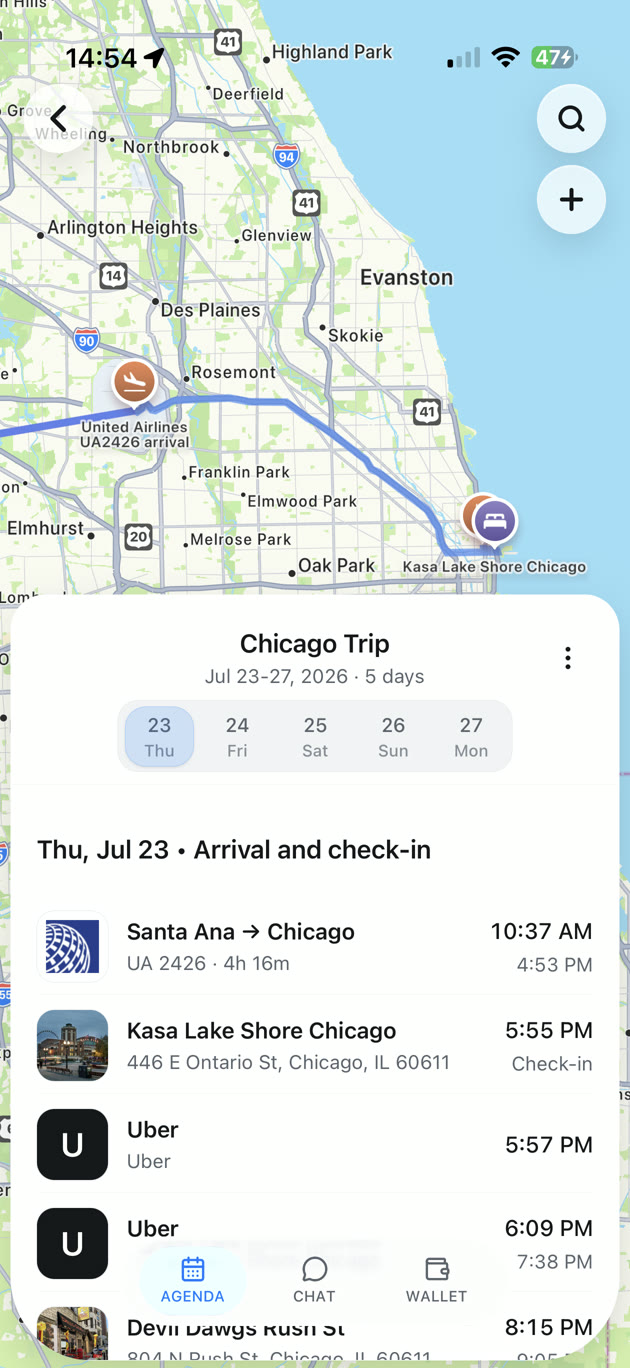
How the apps fit together on arrival day
Imagine you land in Italy, take a train into the city, and go from the station to your hotel. Here’s what to have ready at each stop.
- Before the flight: Add the flight, both train stations, and the hotel address to your arrival day. Open the operator’s ticket, download your map area, and save both languages.
- At the airport: Match the departure station on your ticket to the airport signs. Check the route while you have a connection. Use Translate if a sign is unclear.
- At the train station: Match the train number and departure time to the station board. Use the boarding or inspection format for the ticket you bought.
- At the arrival station: Open the saved hotel address and check the last part of the route. If mobile data drops, use the downloaded street map and the transfer steps you saved earlier.
If your dates and cities are still open, start with the Italy trip-planning guide.
Italy travel apps at a glance
| App and job | Platforms | Prepare before you leave | Offline and ticket access |
|---|---|---|---|
| Trenitalia for its train tickets | iPhone and Android | Match the full station names. Open the issued ticket. | Use a connection for booking and live updates. A Digital Regional Ticket needs its dynamic green bar for inspection. |
| Italo for its high-speed trains | iPhone, iPad, and Android | Open the issued ticket. Keep the confirmation SMS if you have one. | Use a connection for booking and changes. A paper ticket or confirmation SMS is an accepted backup. |
| Google Maps for places and directions | iPhone, iPad, and Android | Save places, download the area, and keep your first transfer steps handy. | View the saved area offline. Connect for transit, cycling, and walking directions. |
| Google Translate for signs and menus | iPhone, iPad, and Android | Download Italian and your own language. | Use downloaded languages for offline typed text. Check camera or speech support on your phone. |
| TripNoted for the whole itinerary | iPhone and web | Open the trip on your iPhone before departure. | Read downloaded itinerary details in the iPhone app. New imports and syncing need a connection. |
Questions before you go
What if I can’t get the rail app in my phone’s store?
Use the operator’s official website to search and book. Open the confirmation when you receive it and check which ticket format to show.
What should I do if I change my train?
Open the updated ticket from the operator and check the new train number, stations, and departure time. Update the itinerary and any saved transfer steps so you and your companions use the same plan.
What if my phone battery runs out?
Keep the hotel address and station names on paper or with a companion. If your operator accepts a printed copy of your ticket type, carry one. For a ticket that needs a working screen, bring a way to charge your phone.